Purpose: Amendments are signed when one or more significant changes are made to an active PD signed between UNICEF and CSO partner. These changes then need to be entered into eTools to capture all the changes.
In eTools this will re-open all the fields (that are normally locked) when amendments are added to allow Partnership Manager to update any relevant information
Who: Partnership Manager
When: Your signed or active programme document requires amendments
1. Log into eTools with your UNICEF email and password
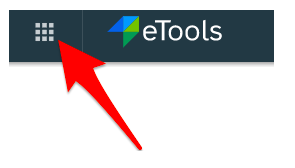
2. Click on the Menu icon in the top left corner of the screen to open menu
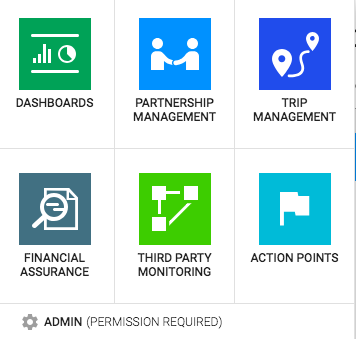
3. Click on Partnership Management
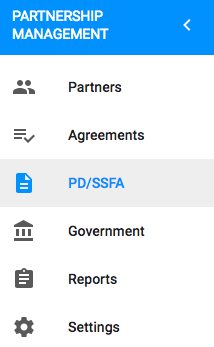
4. Click on PD/SSFA
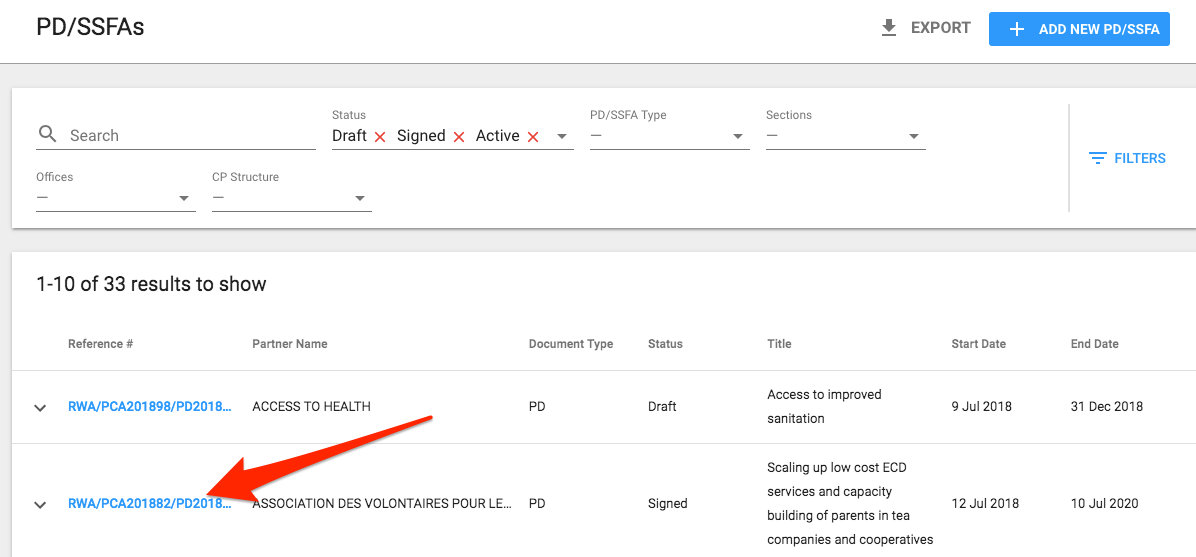
5. List of your PD/SSFAs will open
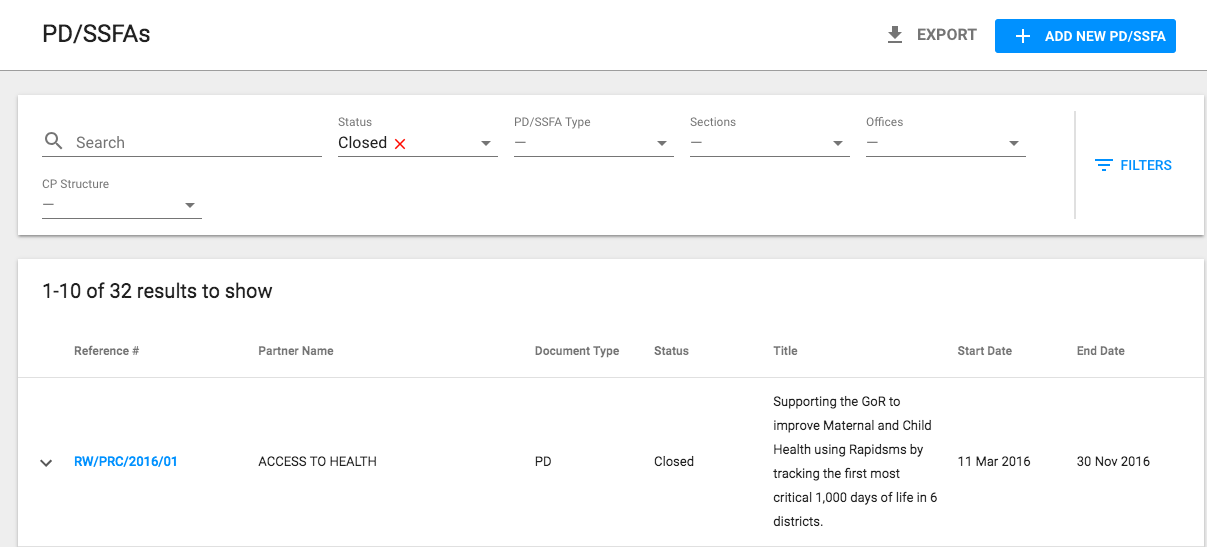
6. Click on the reference number of the PD/SSFA you wish to amend
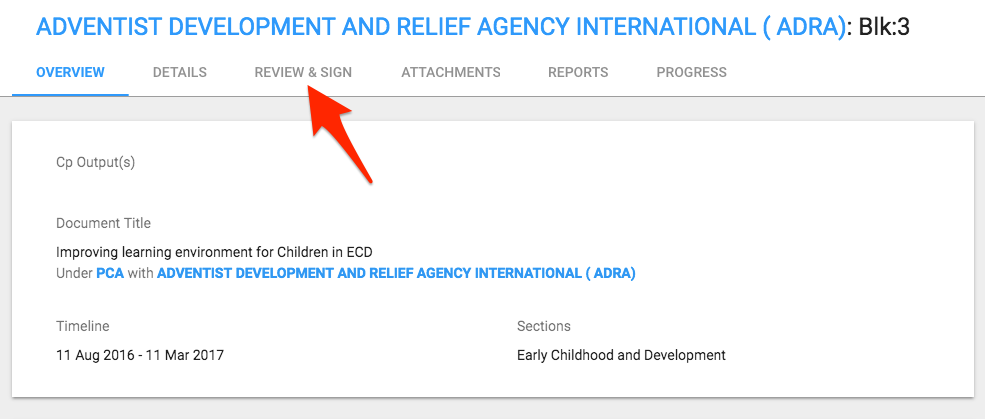
7. Go to Review & Sign tab
8. Scroll down to Amendments and click on the + sign

9. A pop-up will appear. Enter your amendment details: Signed Date (date when amendment was signed), Amendment Type (choose between dates, results, budget, other)
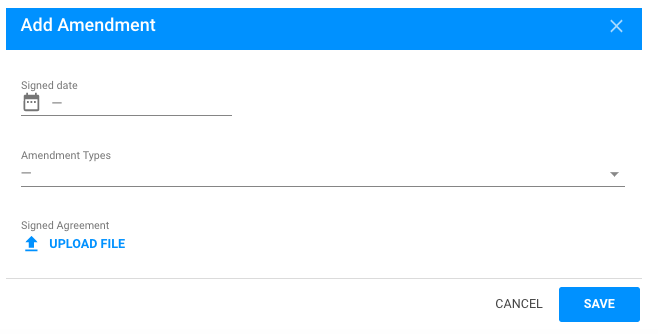
NOTE: When selecting Other from the list of Amendment Types, you need to describe the change made. Also, please note that you can select more than one type of change
Who: Partnership Manager
When: Your signed or active programme document requires amendments
1. Log into eTools with your UNICEF email and password
2. Click on the Menu icon in the top left corner of the screen to open menu
3. Click on Partnership Management
4. Click on PD/SSFA
5. List of your PD/SSFAs will open
6. Click on the reference number of the PD/SSFA you wish to amend
7. Go to Review & Sign tab
8. Scroll down to Amendments and click on the + sign
9. A pop-up will appear. Enter your amendment details: Signed Date (date when amendment was signed), Amendment Type (choose between dates, results, budget, other)
NOTE: When selecting Other from the list of Amendment Types, you need to describe the change made. Also, please note that you can select more than one type of change
10. Upload the scanned version of your amendment (signed)
11. Once you click Save, your PD/SSFA will be in Amendment Mode and all your fields in Details and Review and Sign tabs will be opened for editing
12. When you are done editing, click on I am done
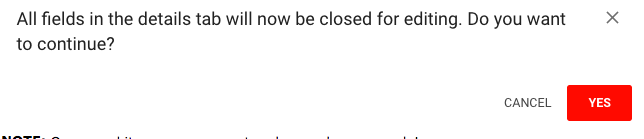
13. A pop-up message will appear asking you to confirm whether you are done editing. Click Yes, if you are done
NOTE: Once you hit save, you cannot undo any changes made!
IMPORTANT: The Reference Number of the PD will change accordingly to show amendment has been recorded. You can save changes as your data in different fields without clicking on I am done button. This will allow you make changes in different sittings for one amendment.