Purpose: Assign action points to your UNICEF colleagues
Who: UNICEF staff member
When: UNICEF staff wants to mark an action point assigned to them as complete
1. Go to etools.unicef.org and log into eTools using your UNICEF email and password
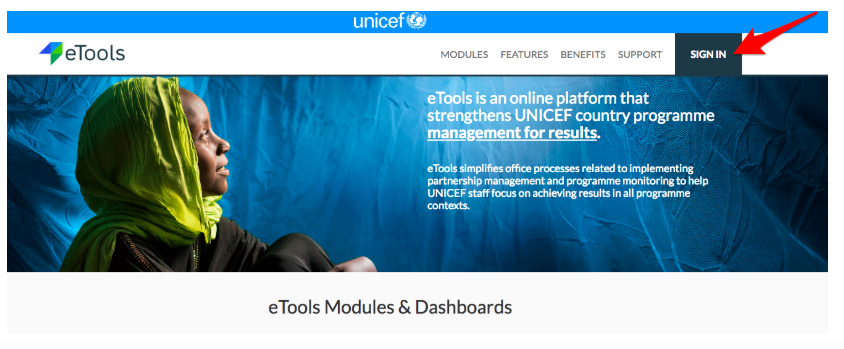
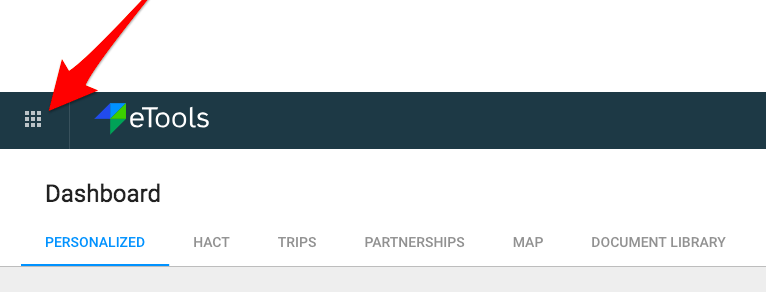
2. Click on the Menu icon in the top left corner of the screen to open menu

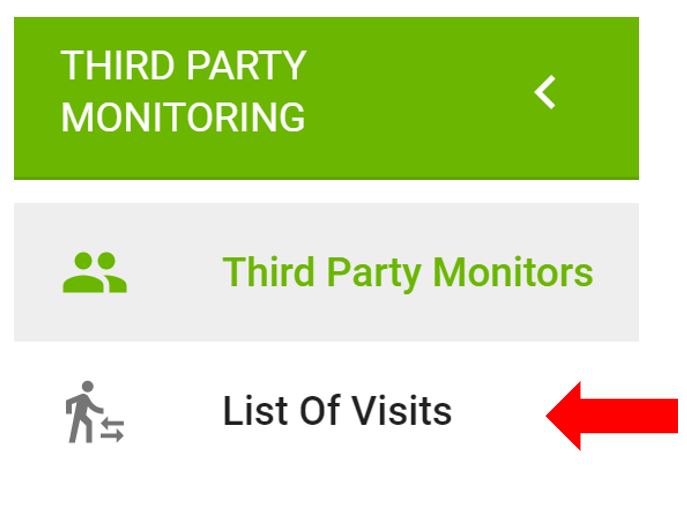
3. Select Third Party Monitoring

4. Third Party Monitoring Module page opens


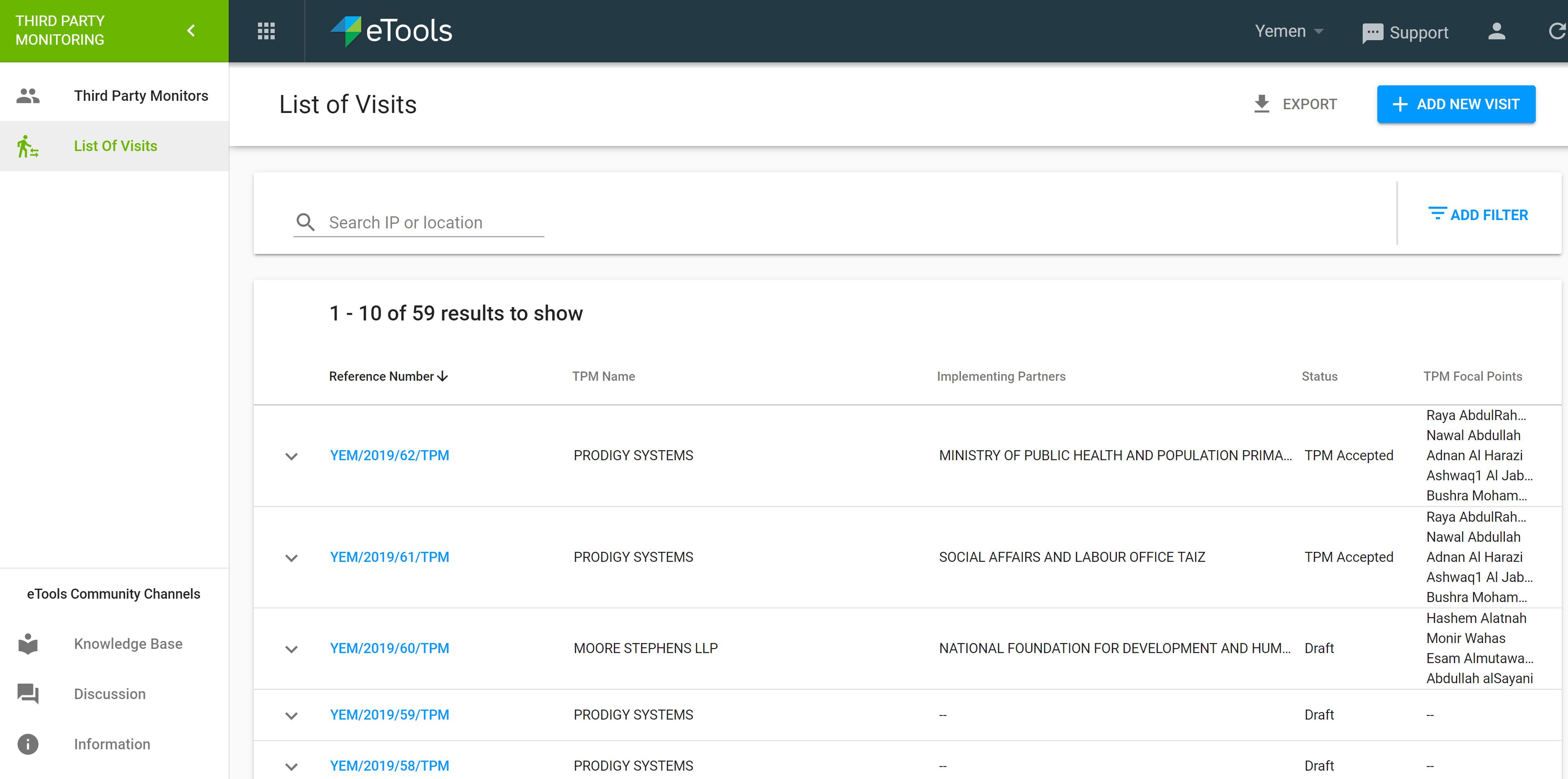
5. Click on List of Visits on the left navigation bar
6. A list of visits will open. Click on the reference number you would like to open.
7. Your Details page will open. Go to Action Points tab to view the list of action points.
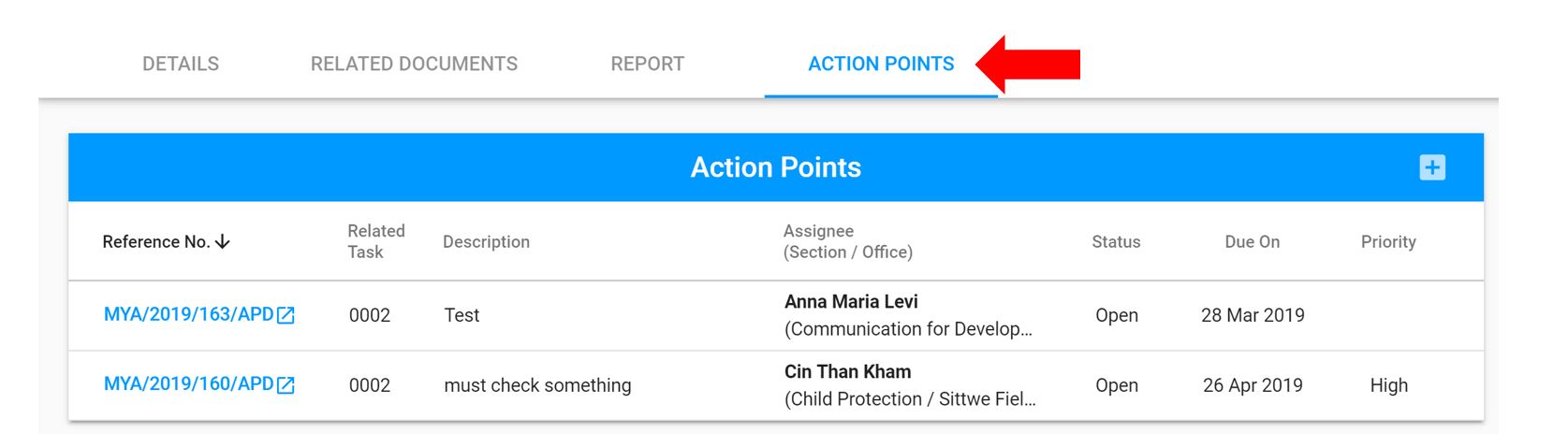
8. Click on Reference Number to open the action point you wish to complete

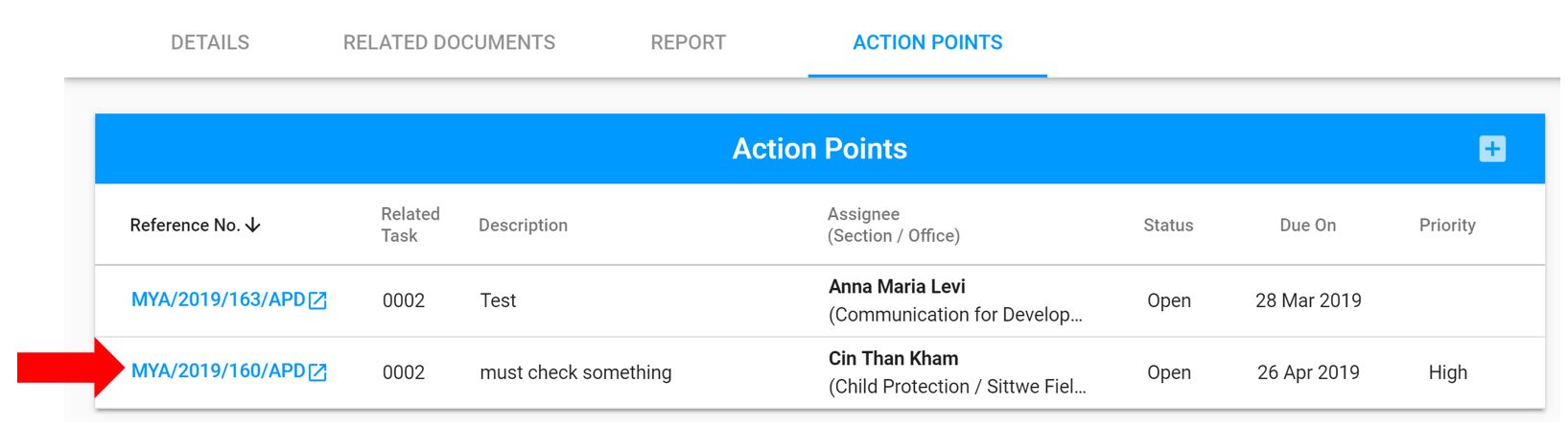
NOTE: You can access the action point you have been assigned from the notification email received by clicking on the link provided in that email
IMPORTANT: If you are not already logged in, please log in before clicking on the link, otherwise you will not be redirected to the visit page!
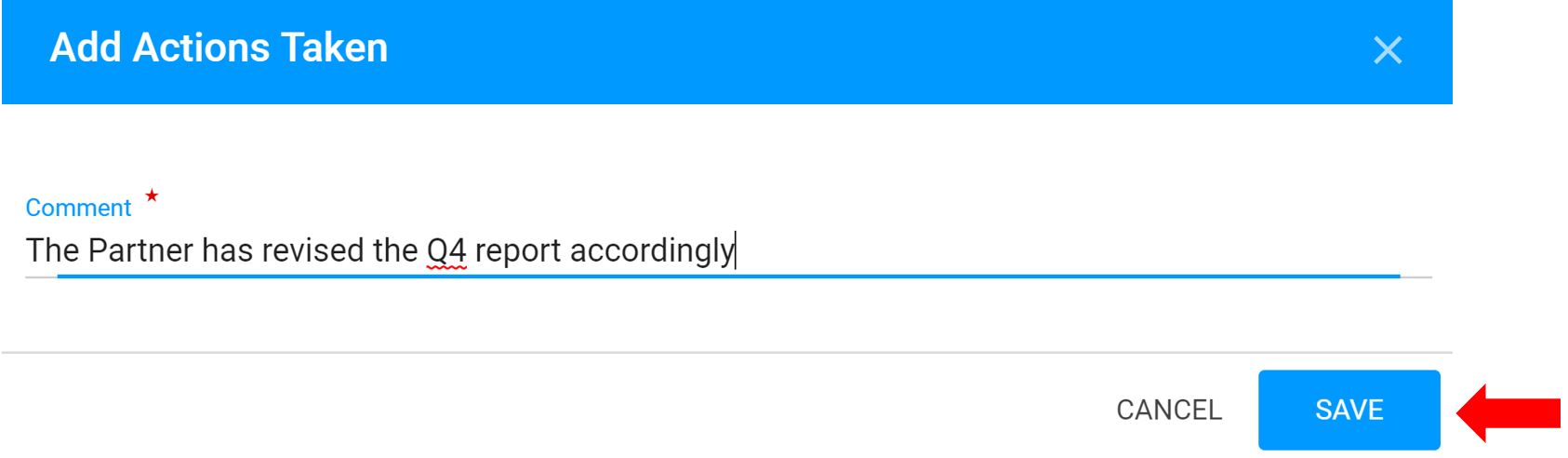
9. Scroll down to Actions Taken section and click on plus sign

10. Enter comment (explain which actions you have taken) and click Save
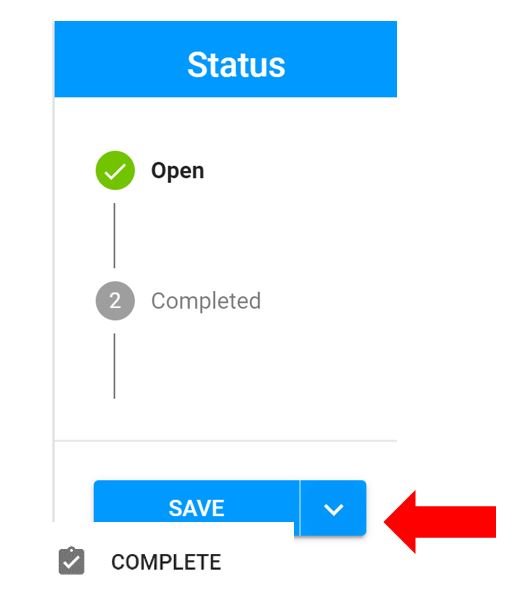
11. Go to Status bar and click on the arrow next to Save button. Select Complete
12. You will receive an email notification that the action point has been completed