Purpose: After you created a TPM profile, you need to enter relevant TPM Staff Members to the TPM profile in order to ensure the correct TPM staff member can be selected as a focal point for the visit and would receive notifications during assignment and review of the report.
Who: PME
When: Add TPM contacts and mark them as active
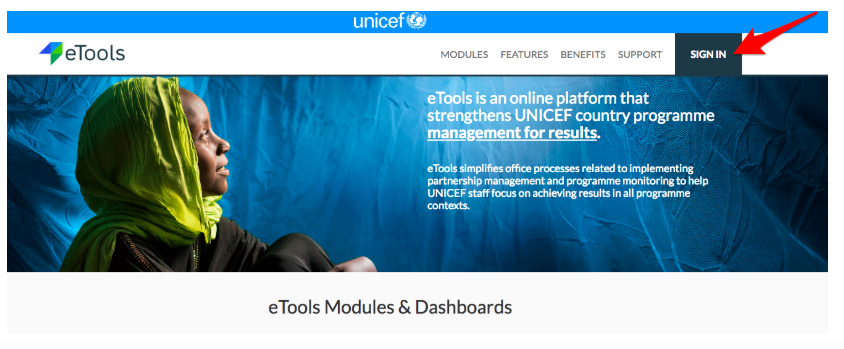
1. Go to etools.unicef.org and log into eTools using your UNICEF email and password
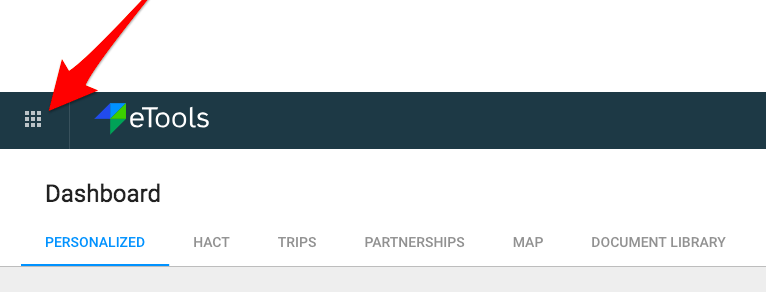
2. Click on the Menu icon in the top left corner of the screen to open menu

3. Select Third Party Monitoring

4. Third Party Monitoring Module page opens


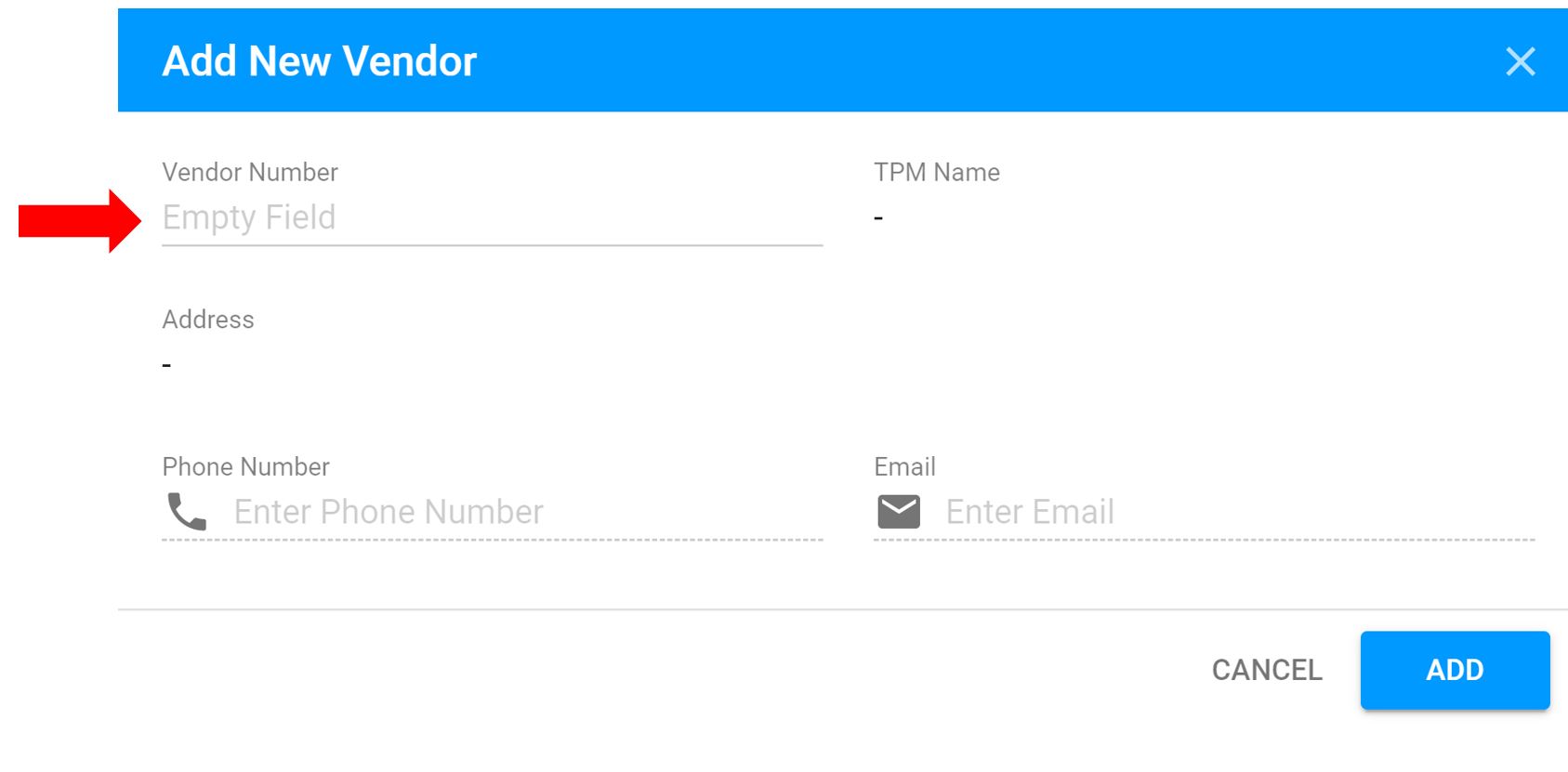
5. Click on Add New Vendor

6. Add TPM Vendor Number and Click Add
7. Once Vendor Number is entered, the TPM details (Name and Address) from VISION will be synced
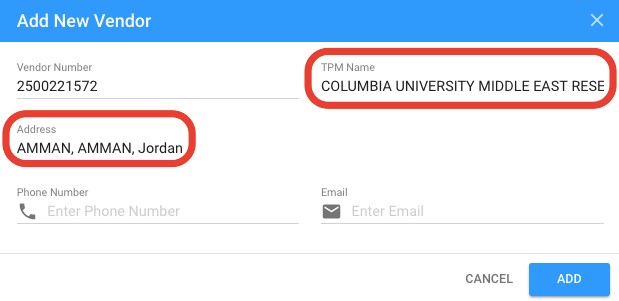
NOTE: You can also add (manually) Vendor's Phone Number and Email
8. After you created a TPM profile, you need to enter relevant TPM Staff Members to the TPM profile in order to ensure the correct TPM staff member can be selected as a focal point for the visit and would receive notifications during assignment and review of the report.
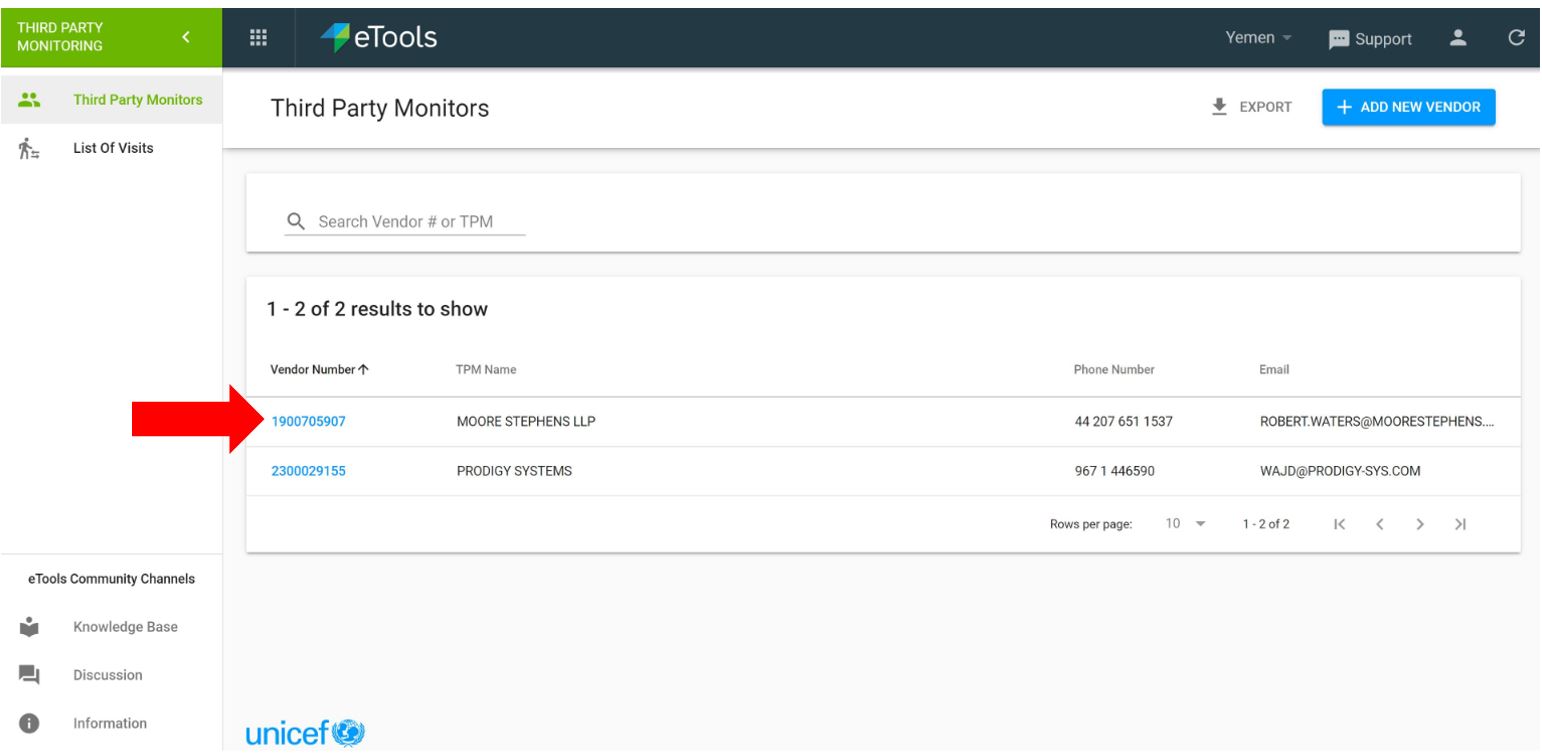
9. Go back to the list of your Third Party Monitors and click on the Vendor Number of the TPM Profile you want to add/modify TPM Staff members
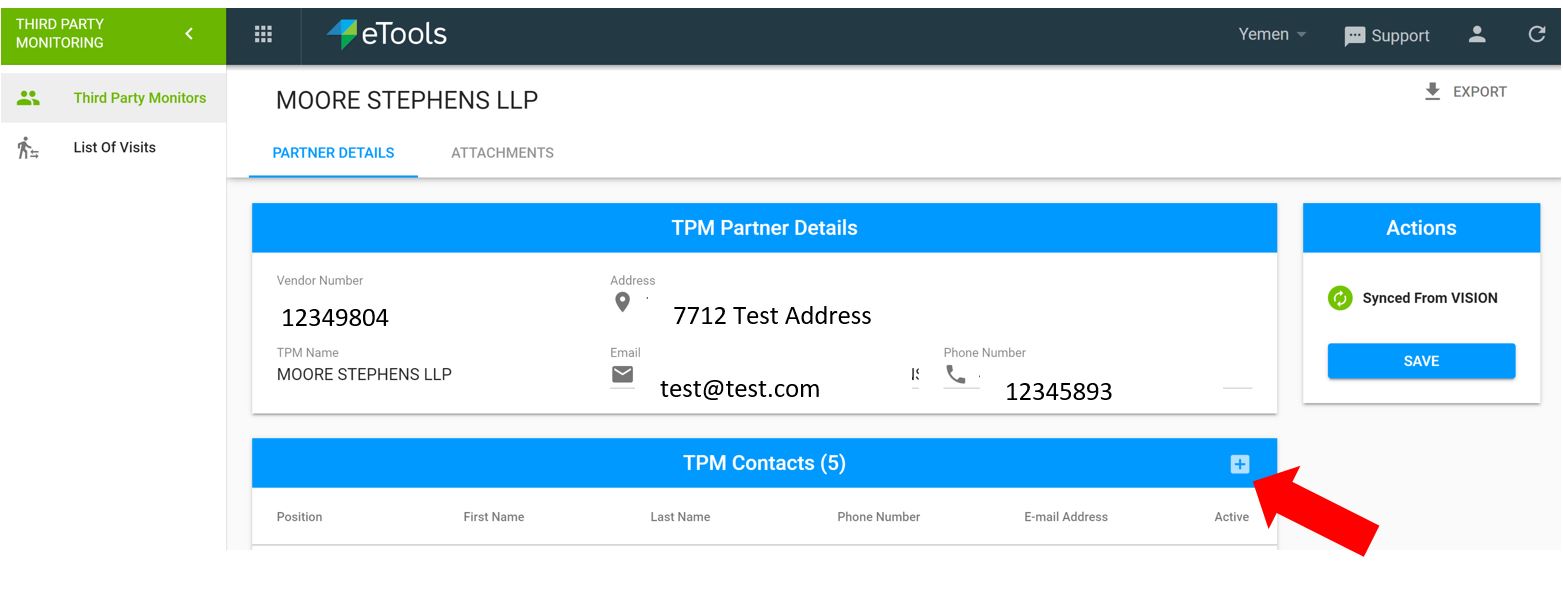
10. TPM Partner Details page will open. Scroll down to TPM Contacts and click on + sign
11. Enter email address, first and last name (mandatory fields), position and phone number (optional) and check mark Active box
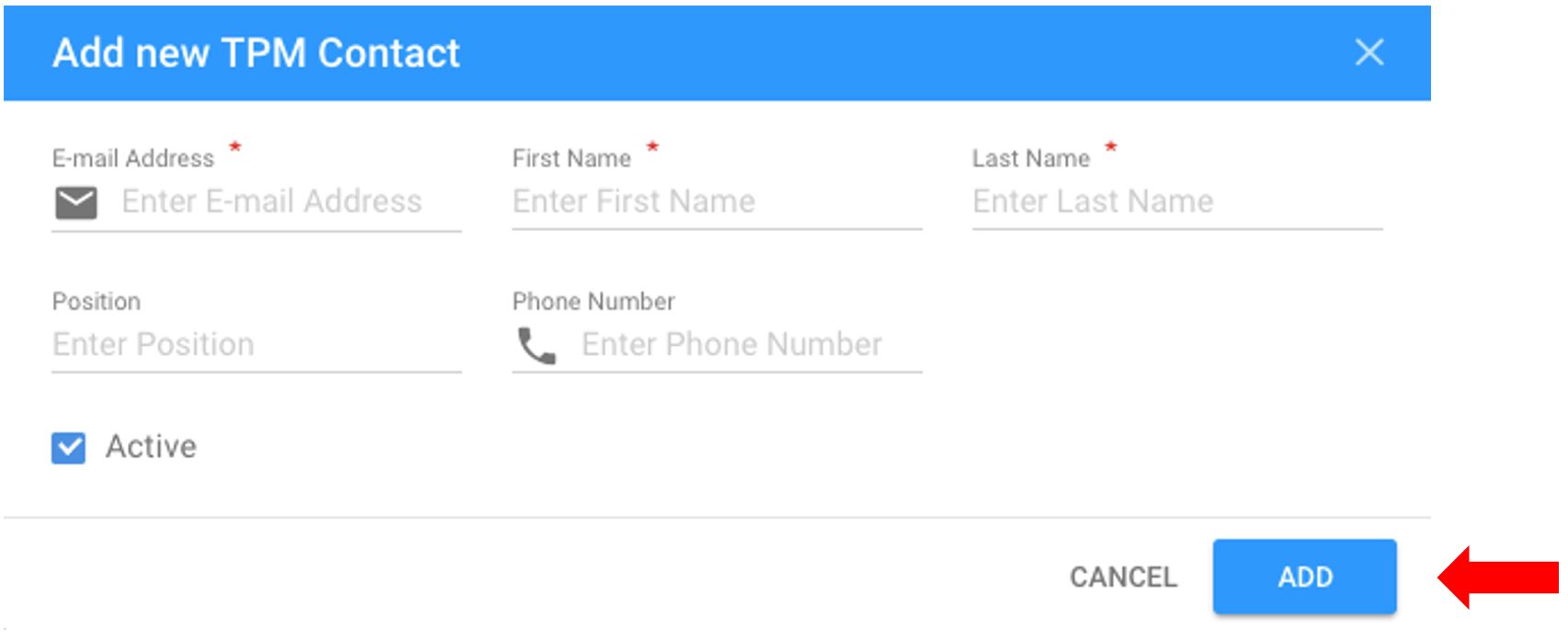
IMPORTANT: email addresses must be unique, and cannot be entered into eTools more than once.
NOTE: Those marked as "Active" will be the TPMs who can be assigned to a visit and will receive notification of assignment.
