Purpose: Edit action points assigned to UNICEF staff member
Who: PME and UNICEF Focal Point
When: PME and UNICEF Focal Point want to edit action point assigned to UNICEF staff member
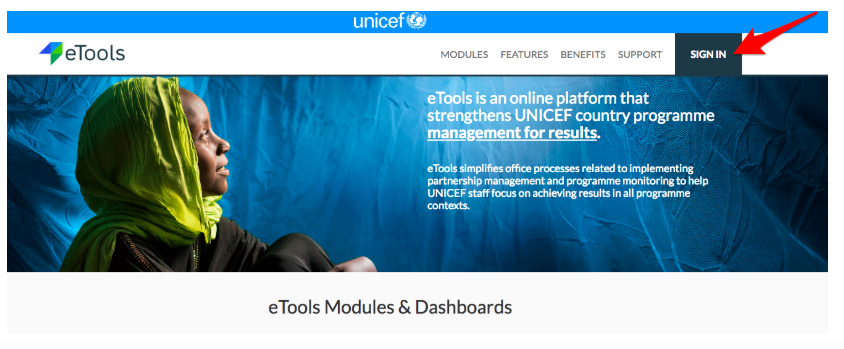
1. Go to etools.unicef.org and log into eTools using your UNICEF email and password
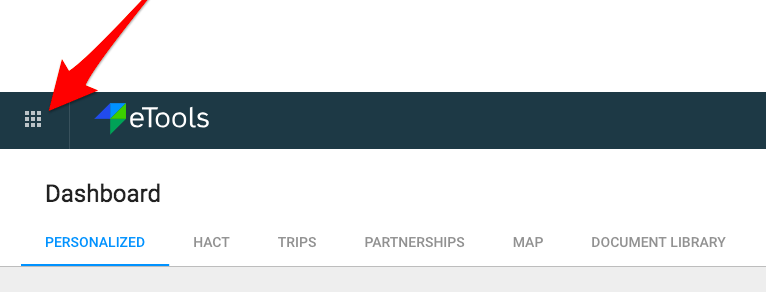
2. Click on the Menu icon in the top left corner of the screen to open menu

3. Select Third Party Monitoring

4. Third Party Monitoring Module page opens


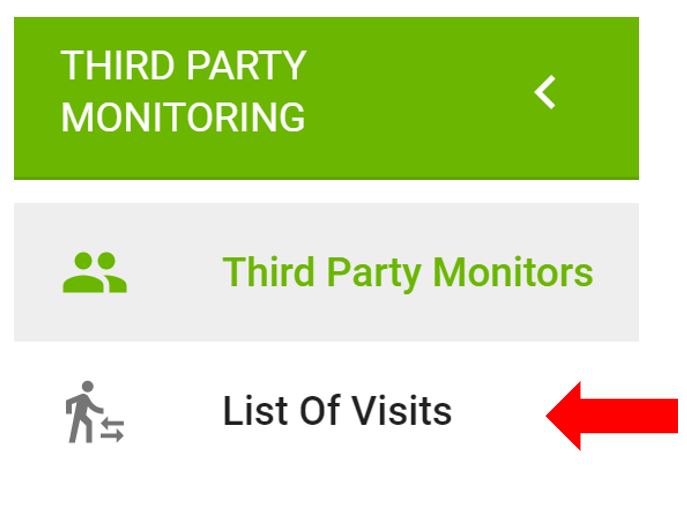
5. Click on List of Visits on the left navigation bar
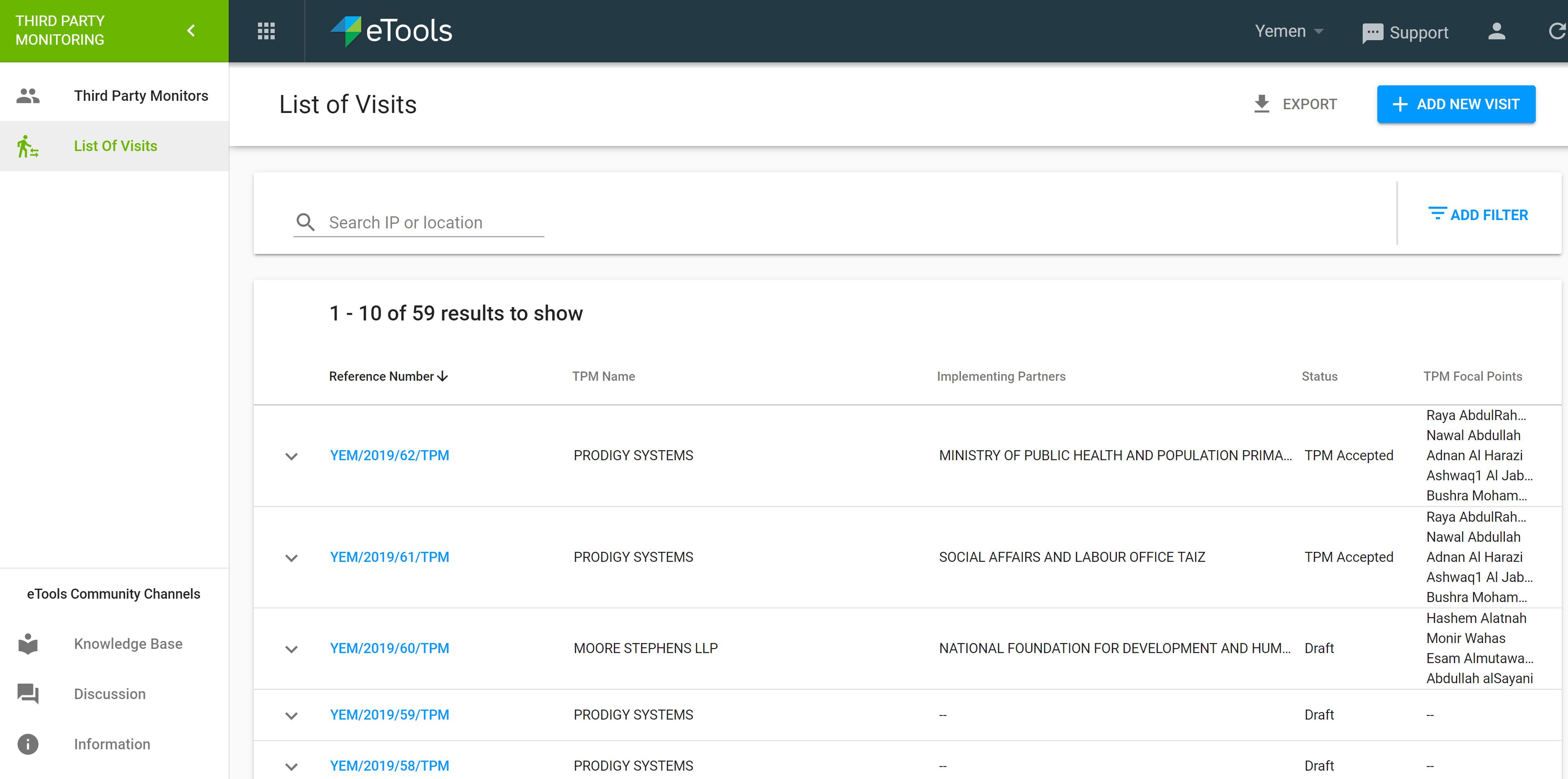
6. A list of visits will open. Click on the reference number you would like to open.
7. Your Details page will open. Go to Action Points tab to view the list of action points.
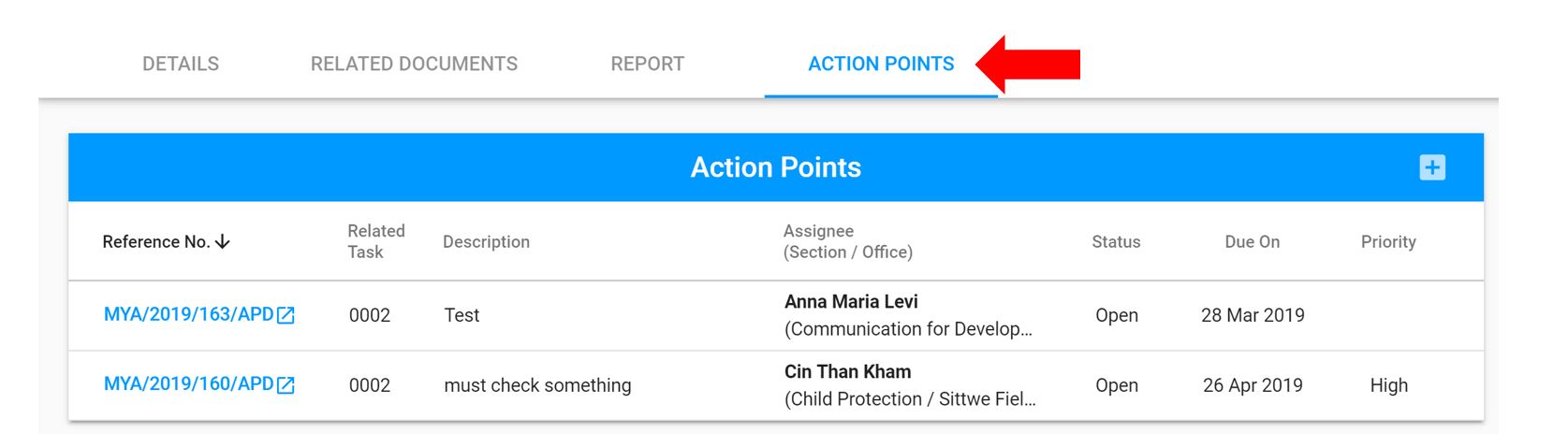
9. If you wish to edit your action point go to the list of action points and click on the arrow next to the action point you wish to edit. Hover across the Action Point for edit icon to appear. Once you click on edit icon, the action point will open.

NOTE: If you need to assign multiple people the same action point, you can select the duplicate function (next to the pencil icon) and assign the same action point to an additional person and edit as needed.
10. Make changes and then click on Save