Purpose: Deactivate partner contact who does not work or is not involved with the partner anymore (to that specific partner in that specific workspace). Deactivated partner contact will not appear in the "Signed by Partner" drop-down when adding a new agreement
Who: Partnership Manager
When: Contact person has changed
1. Log into eTools with your UNICEF email and password
2. Click on the Menu icon in the top left corner of the screen to open menu
3. Click on Partnership Management
4. Click on Partners
5. A list of your partners will open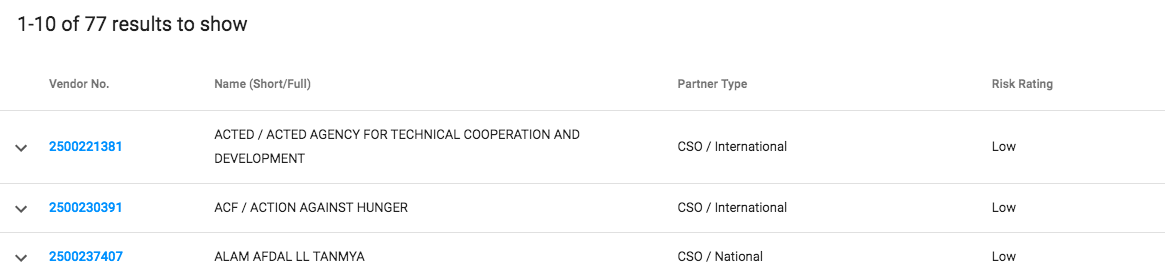
6. Click on the vendor number of the partner whose contact details you wish to add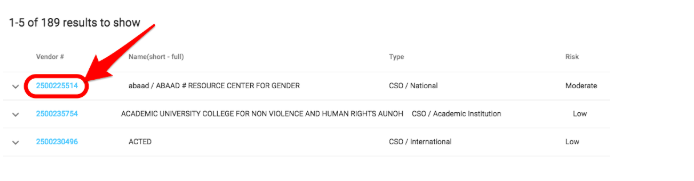
7. Partner details page will open
8. Scroll down to Partner Contacts section
9. Hover across the name and click on pencil icon

10. Uncheck the box Active Staff and click Save

11. Your partner contacts will be deactivated and will not appear on the list anymore. However, you can use the toggle button to show all your inactive partners.
