Purpose: Delete a partner that was wrongly entered into eTools
Who: Partnership Manager
When: A partner can be deleted if they are not associated with a signed PCA/SSFA that exists in the workspace and it does not have any transactions within the business area in VISION.
1. Log into eTools with your UNICEF email and password
2. Click on the Menu icon in the top left corner of the screen to open menu

3. Click on Partnership Management

4. Click on Partners

5. A list of your partners will open
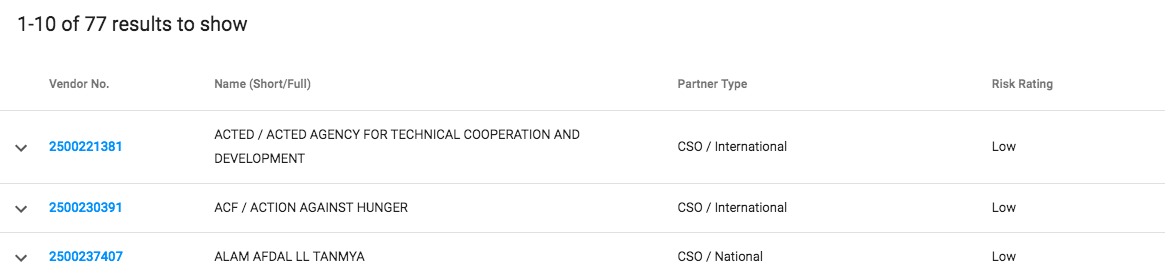
6. Click on the vendor number of the partner whose contact details you wish to add and the Partner Detail page will open
2. Click on the Menu icon in the top left corner of the screen to open menu
3. Click on Partnership Management
4. Click on Partners
5. A list of your partners will open
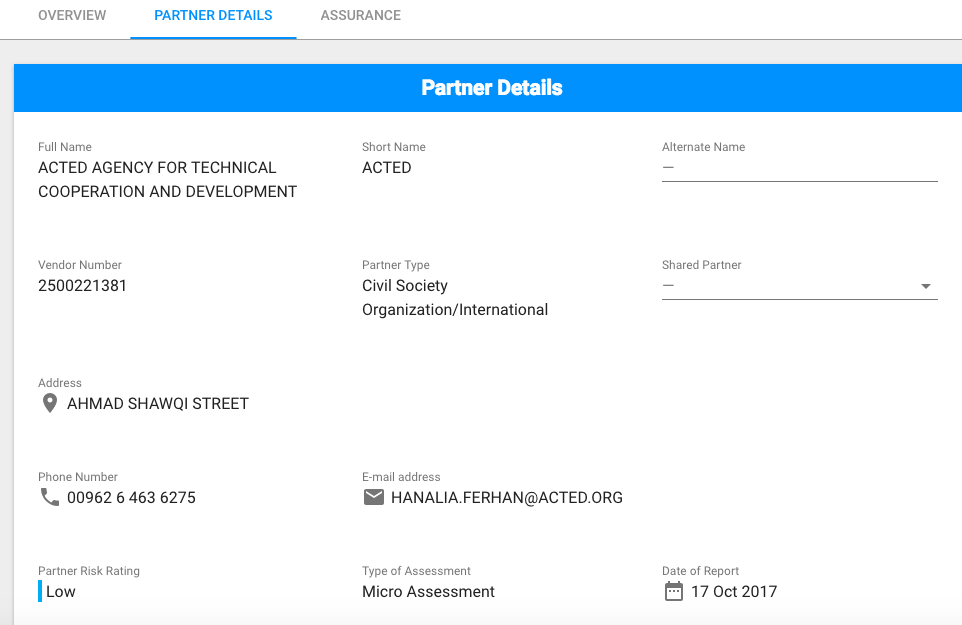
6. Click on the vendor number of the partner whose contact details you wish to add and the Partner Detail page will open
7. In your partner details page go to status bar and click on the arrow right next to save button

8. A Delete button will appear

9. A confirmation message will pop up asking you to confirm whether you want to delete the partner

10. Click Yes and your partner will be deleted