Purpose: Create and generate a new agreement (PCA)
Who: Partnership Manager
When: It is necessary to generate a PCA in cases when a certain partner does not exist yet for the selected Country Programme Cycle
IMPORTANT: In order for pop-ups to appear in your screen, you will need to disable your pop-up blocker in Chrome. Please go to How to Disable pop-up blocker in Chrome for more information.
1. Log into eTools with your UNICEF email and password
2. Click on the Menu icon in the top left corner of the screen to open menu

3. Click on Partnership Management

4. Click on Agreements

5. List of your agreements will appear

6. Click on Add New Agreement

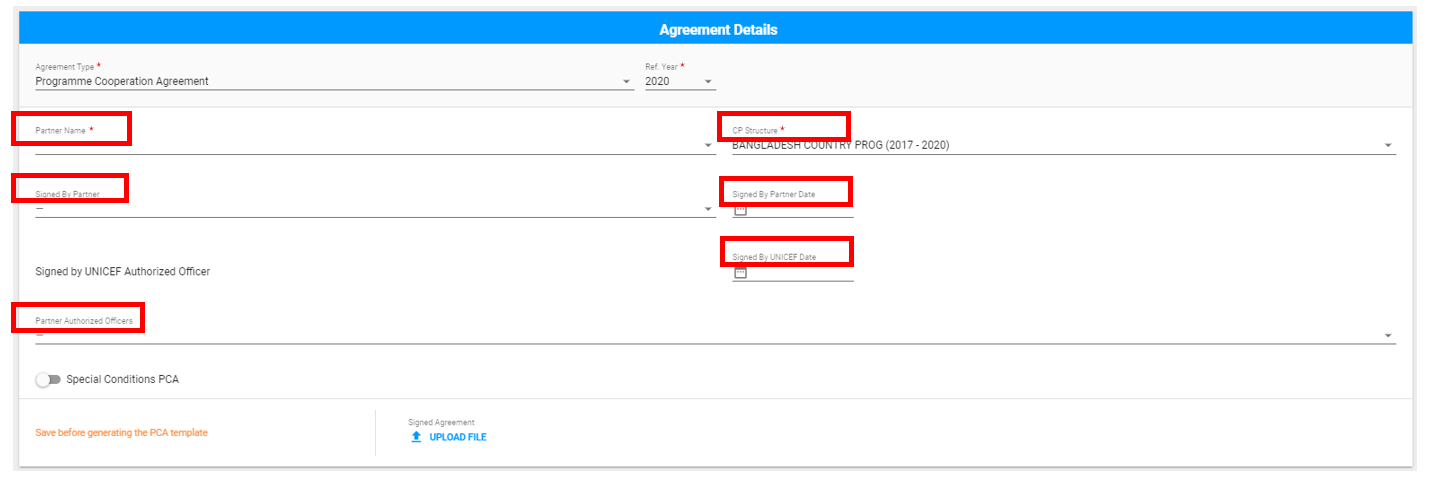
7. Agreement Details page opens. Go to Agreement Type field and select Programme Cooperation Agreement and Reference Year

8. Select CP Structure and Partner Name and fill in the rest of the fields (Signed by Partner; Signed by Partner Date; Signed by UNICEF date, Authorized Officers)

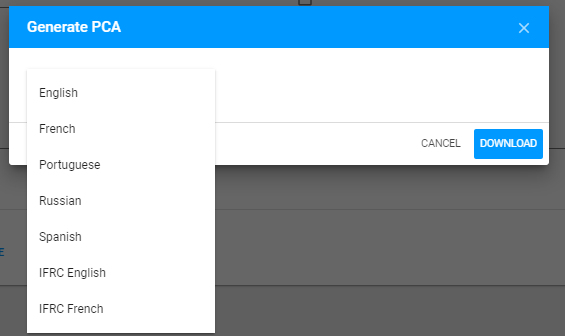
13. Choose the language of your template from the drop-down list and click on Download
15. A PCA will be generated. It needs then to be signed by partner and UNICEF
1. Log into eTools with your UNICEF email and password
2. Click on the Menu icon in the top left corner of the screen to open menu
3. Click on Partnership Management
4. Click on Agreements
5. List of your agreements will appear
6. Click on Add New Agreement
7. Agreement Details page opens. Go to Agreement Type field and select Programme Cooperation Agreement and Reference Year
8. Select CP Structure and Partner Name and fill in the rest of the fields (Signed by Partner; Signed by Partner Date; Signed by UNICEF date, Authorized Officers)
NOTE: At least one Authorized Officer needs to be selected otherwise it will not be possible to generate PCA
IMPORTANT: The paper version of your PCA can be signed by the Officer in Charge (OIC) when the Authorized Officer is not present, however, you will still put the name of that Authorized Officer in eTools and not OIC.
10. Click Save
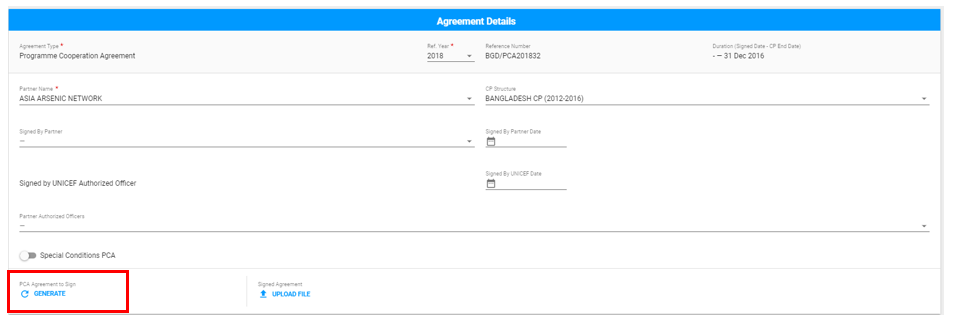
11. Go back to your Agreement Details section and click on Generate PCA
11. Go back to your Agreement Details section and click on Generate PCA
13. Choose the language of your template from the drop-down list and click on Download
15. A PCA will be generated. It needs then to be signed by partner and UNICEF
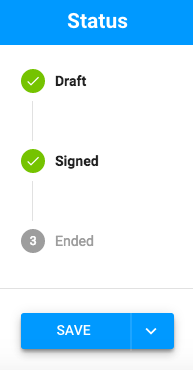
16. Upload your signed PCA, and the status of your PCA will change from Draft to Signed