Purpose: Once an action is taken and action point is ready to be closed, relevant colleagues can go into the action point and change the status to Completed
Who: UNICEF user
1. Go to etools.unicef.org
2. Click on Sign in button
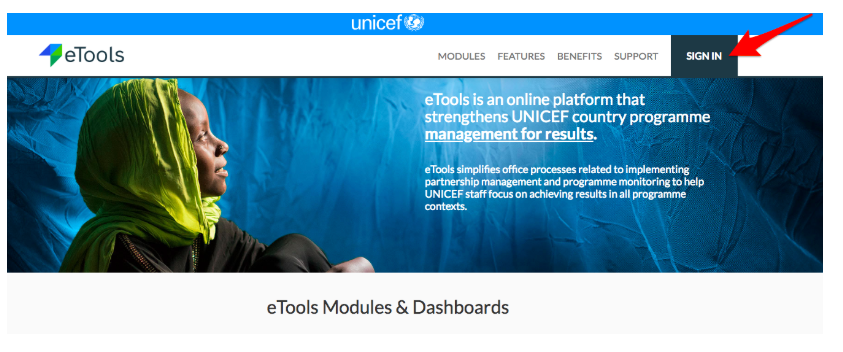
3. If you are signing in for the first time, use your UNICEF email and password to log in
4. Your Personalized Dashboard will open

5. Click on App selector

6. Select Action Points
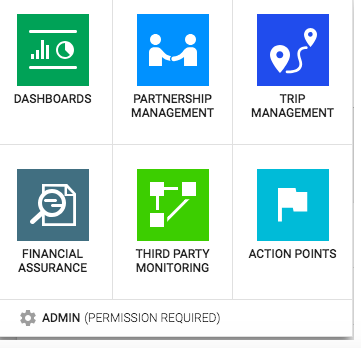
7. Action Points will open
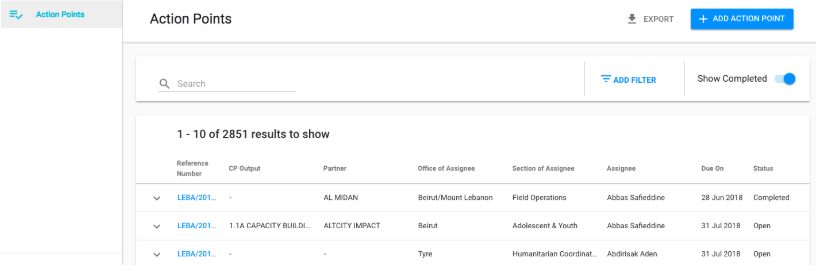
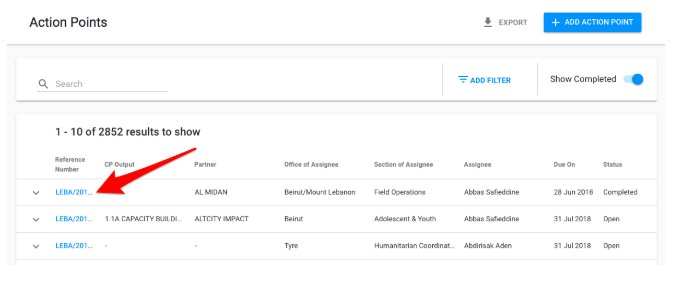
8. Click on the Reference Number of the action point you wish to Complete
9. The Action Points detail page will open. Go to Status bar and click on the arrow next to Save button

10. Click on Complete

NOTE: Once UNICEF user marked the action point as completed, the user to whom the action point is assigned will receive a notification via email informing them of the completion. Using a link in the email notification, the UNICEF user will be able to access the action point.