Purpose: Update action points with comments according to the progress and development of that action point
Who: UNICEF user
1. Go to etools.unicef.org
2. Click on Sign in button

3. If you are signing in for the first time, use your UNICEF email and password to log in
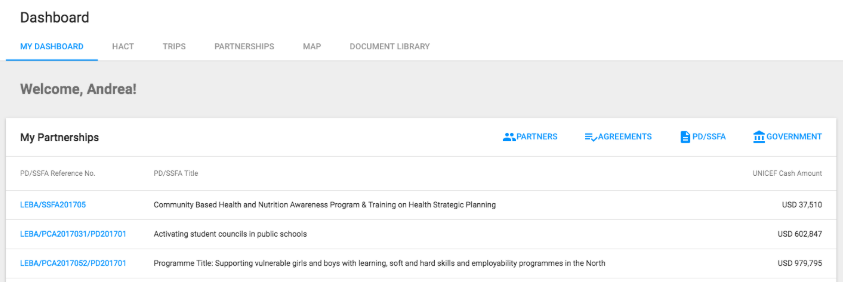
4. Your Personalized Dashboard will open
5. Click on App selector

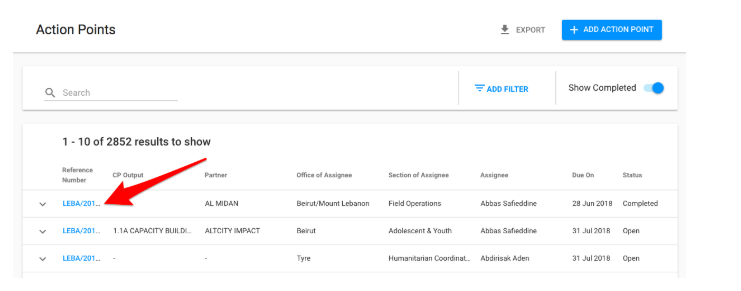
6. Select Action Points

7. Click on the Reference Number of the action point you wish to update
9. Your Action Points Details will open. Scroll down to Actions Taken and click on + sign

10. Enter your comments and click Save
