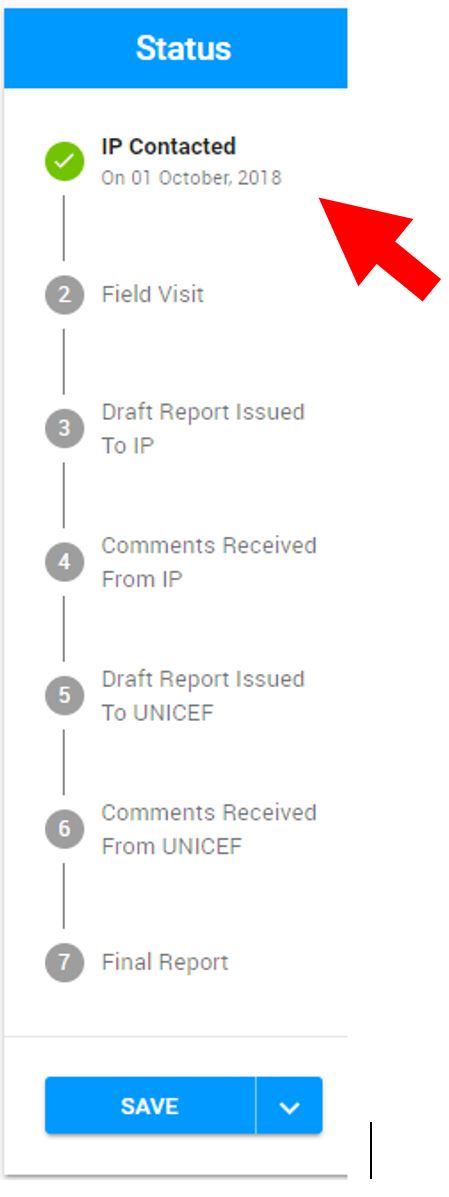
Purpose: Provide an overview of the partner details, engagement type (audit), and share appropriate forms with the audit team to conduct their visit
Who: UNICEF Focal Point
When: A summary of information required for the auditor to complete their visit
1. Log into eTools using your UNICEF email and password


2. Click on the Menu icon in the top left corner of the screen

3. Select Financial Assurance Module
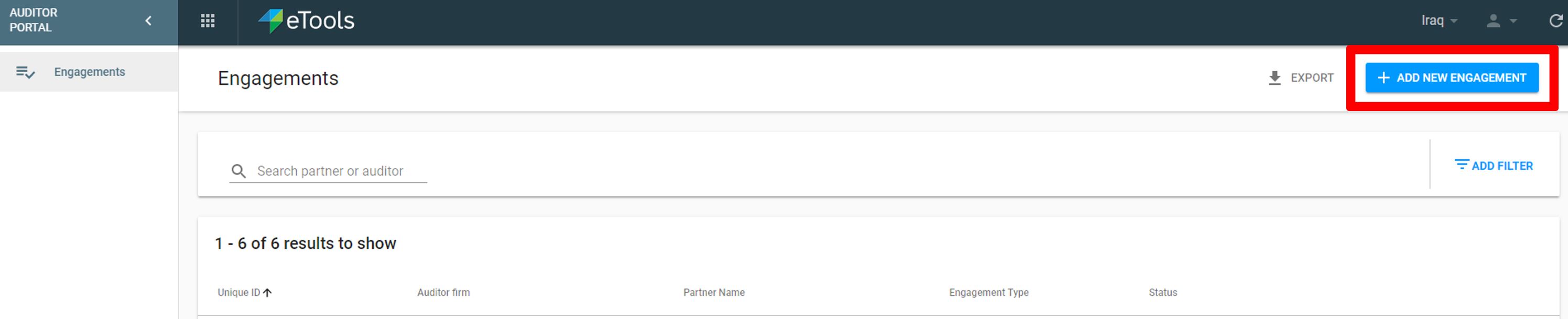
4. List of engagements will open
5. Click on Add New Engagement
6. Enter 00 (double zero) followed by Purchase Order (PO) Number and press enter

7. Vendor Name, PO Date and Contract Expiry Date will automatically be populated (from VISION) once you enter Purchase Order Number (from VISION)
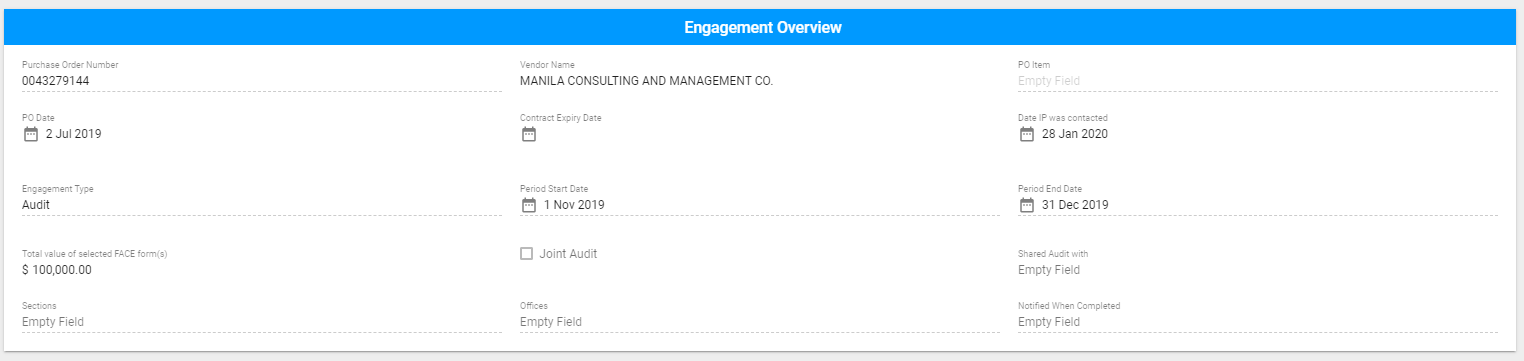
8. Click on Engagement Type drop-down

9. Select Audit from the drop-down list
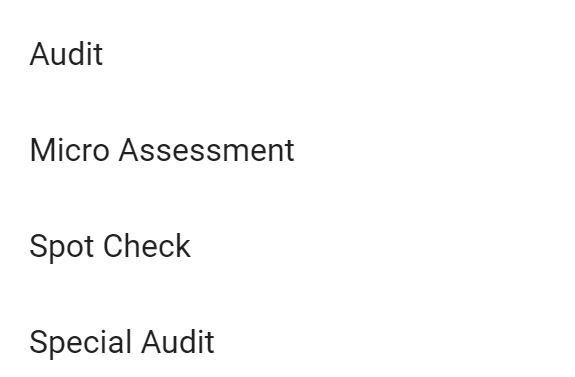
10. Fill in the required fields (marked by red asterisk): Total value of selected FACE form(s); Period Start Date; PO Item; Date IP was contacted; Period End Date

NOTE: In case of a joint audit, you should check mark the box or if you share this IP, then select the shared IP from the drop-down list
11. Scroll down to Partner details and click on Partner drop-down list to select the partner

12. Partner details will be automatically populated

13. Select Relevant PD(s) or SSFA(s) from the drop-down list (only applicable to CSO partners)

14. Select at least one Audit Staff Member or click on the plus sign at the top right of the card to add a new audit staff member.

15. To add or share attachments with the auditor that are relevant to the audit. Click on the Attachments tab.

16. To share attachments related to the partner and/or programme that are already uploaded on eTools. Click on the upload button. A pop up will appear showing the available documents from the eTools library. You can select multiple files and click on Share to attach to the audit.
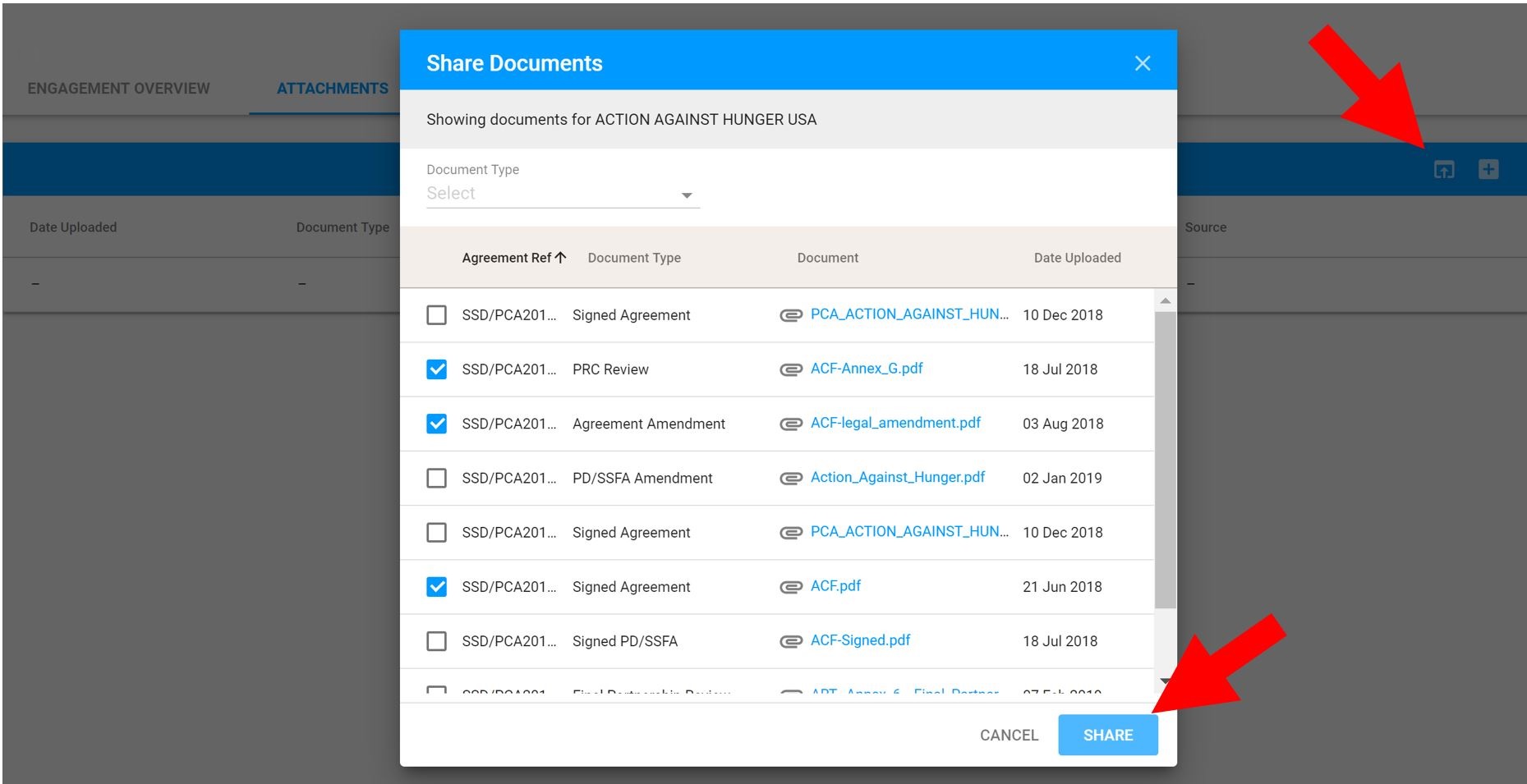
17. To upload attachments click on the upload button and attach the relevant files
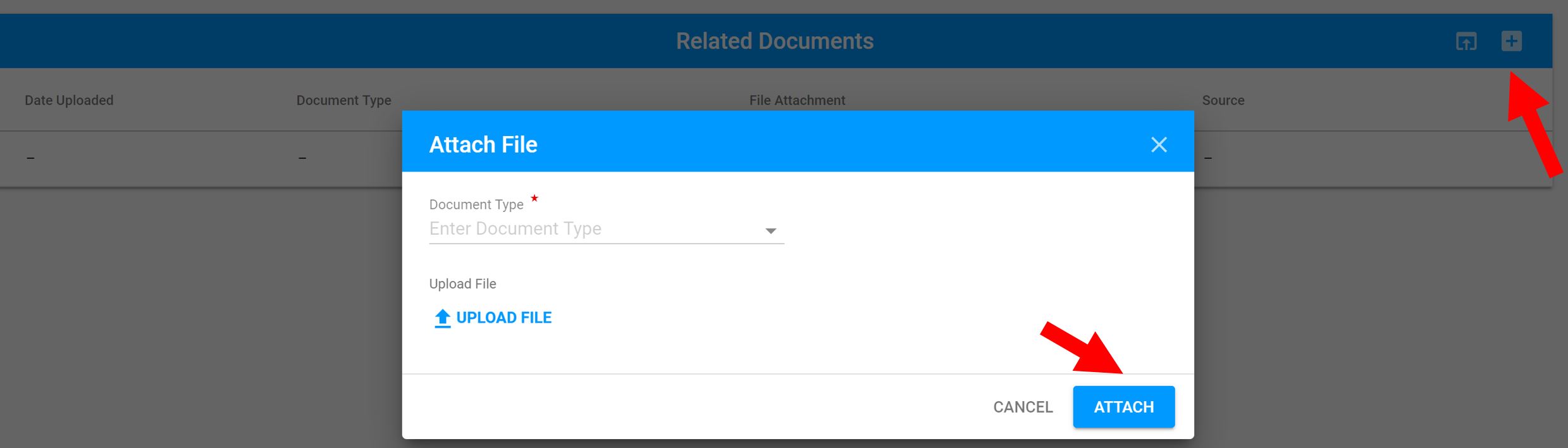
18. Click on the pencil or trash can icons to edit or delete the attachments

19. Click on Create in the Status bar
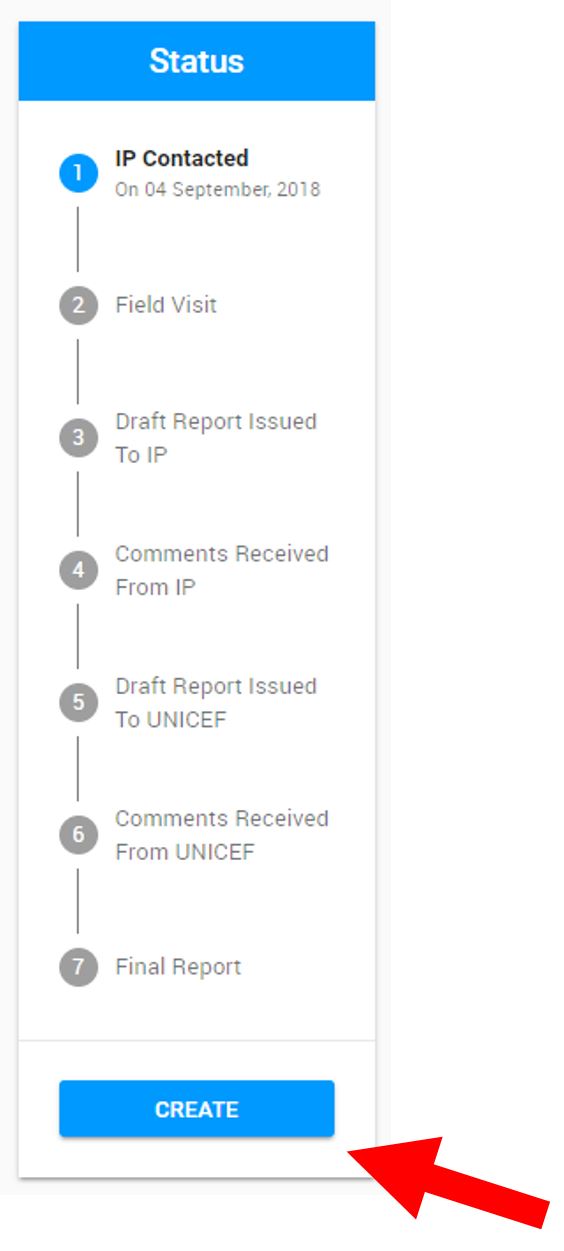
20. The status of your engagement will change to IP Contacted (including the date IP was contacted). The Auditor Staff Team Members will receive an e-mail informing them of their selection for the engagement.