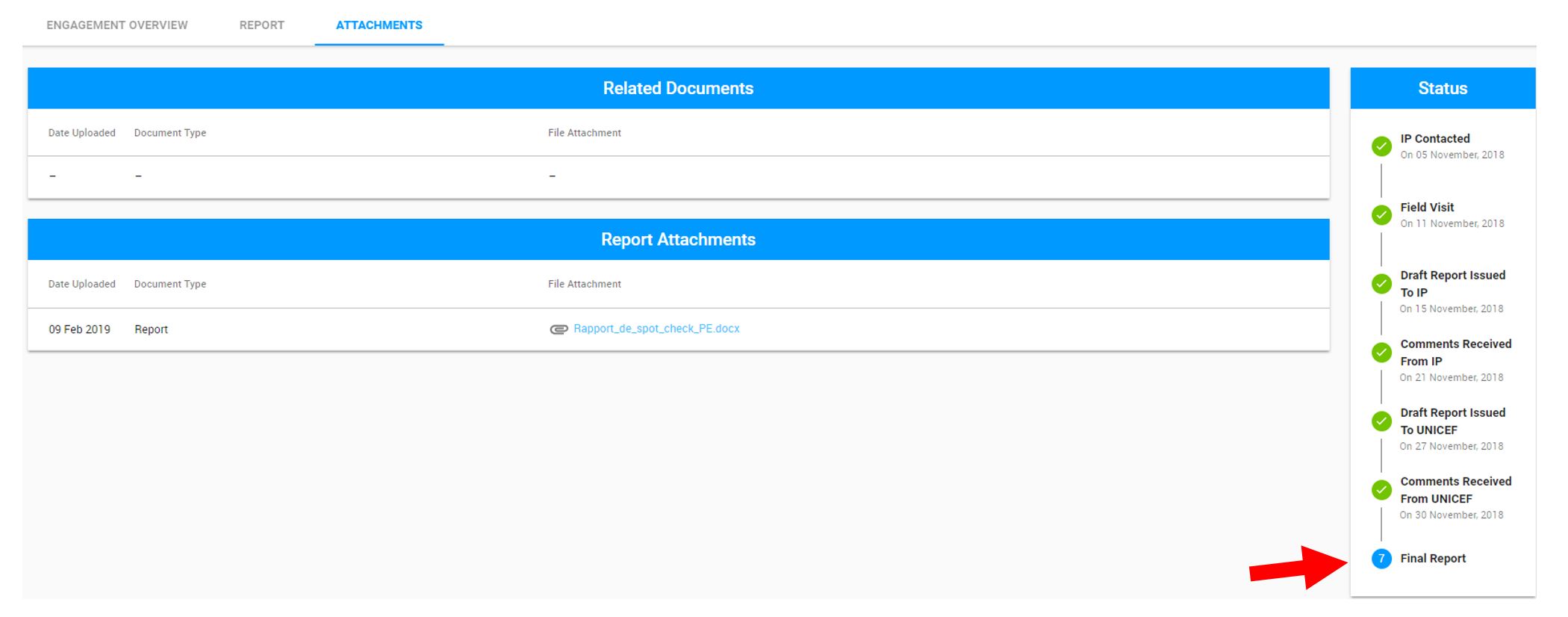
Purpose: Auditor completes the report for the engagement and submits to UNICEF for review
Who: Auditor
When: UNICEF Focal Points created an engagement and the auditor is granted access to the Financial Assurance Module to complete the report for the engagement and submit to UNICEF for review.
IMPORTANT: UNICEF Users and UNICEF Focal Points are not able to view content entered as a draft by the Auditor, and will only become available to them once the final report is issued. UNICEF Users and UNICEF Focal Points have view-only access to the status of engagement.
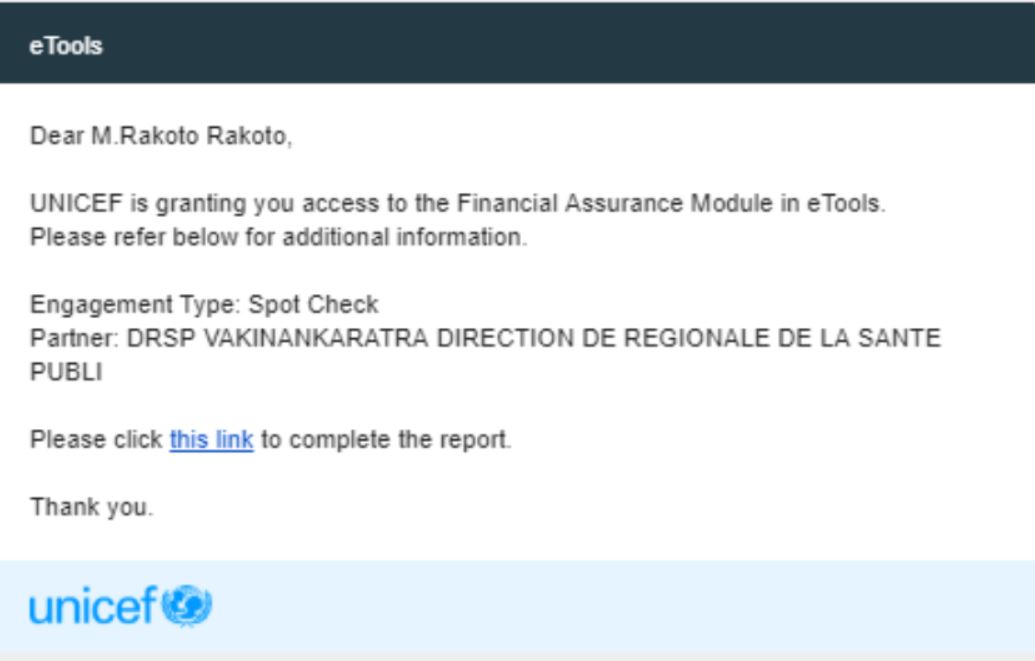
1) Click link in email to gain access to Financial Assurance Module
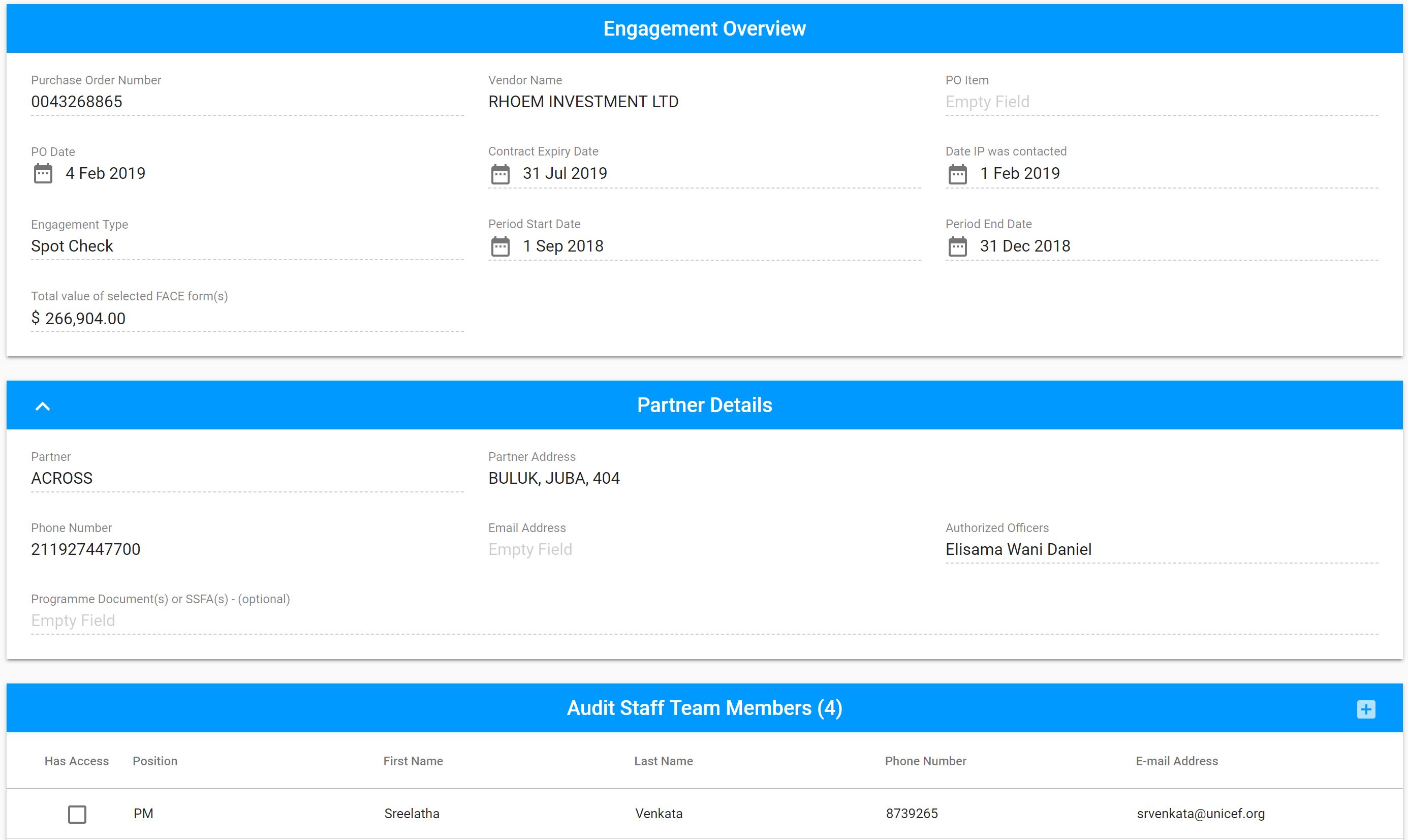
2) Engagement overview page will open and you will be able to view the engagement overview and partner information entered by UNICEF Focal Point.
3)
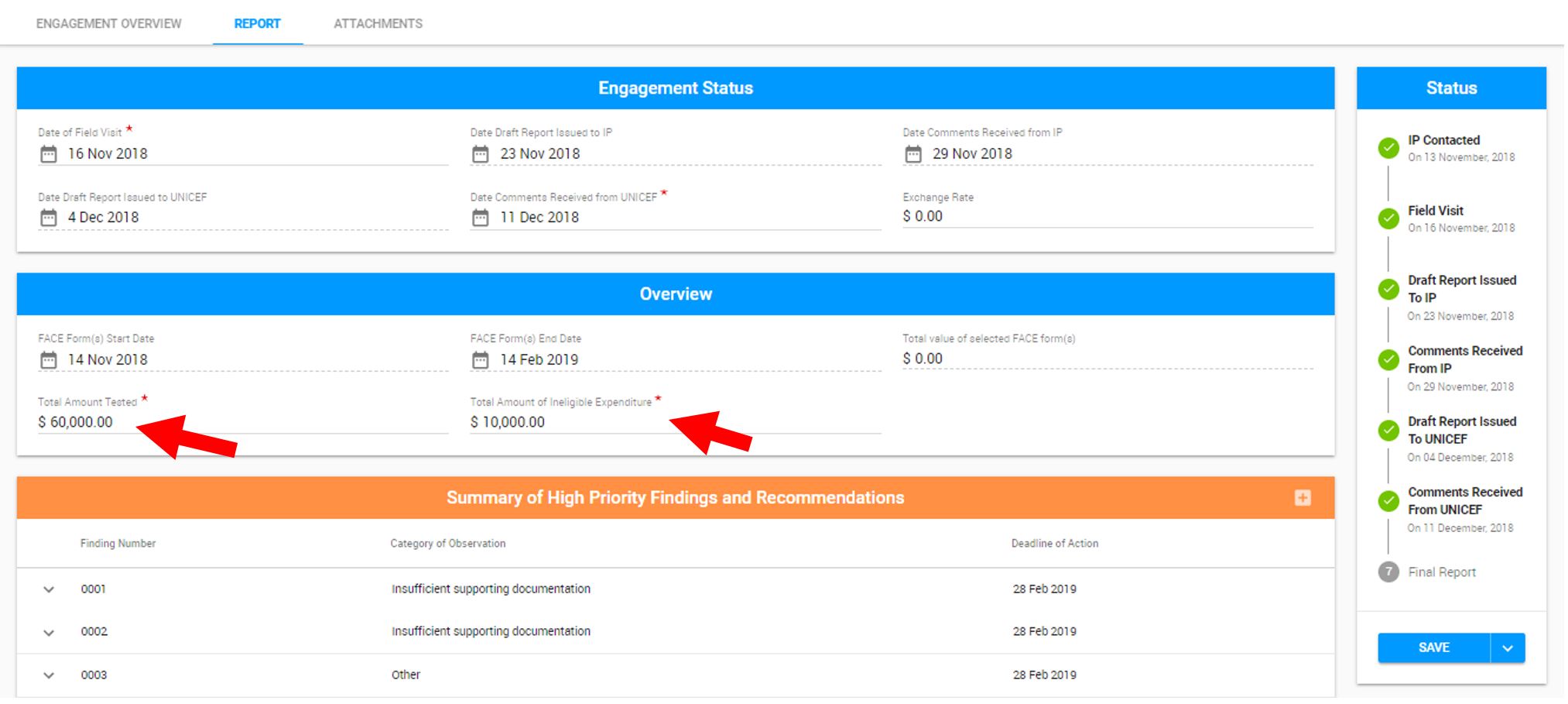
Click on Report tab and enter the Date of the Field Visit, Once you enter the Date of the Field Visit into the report, the status will update to coincide with this date
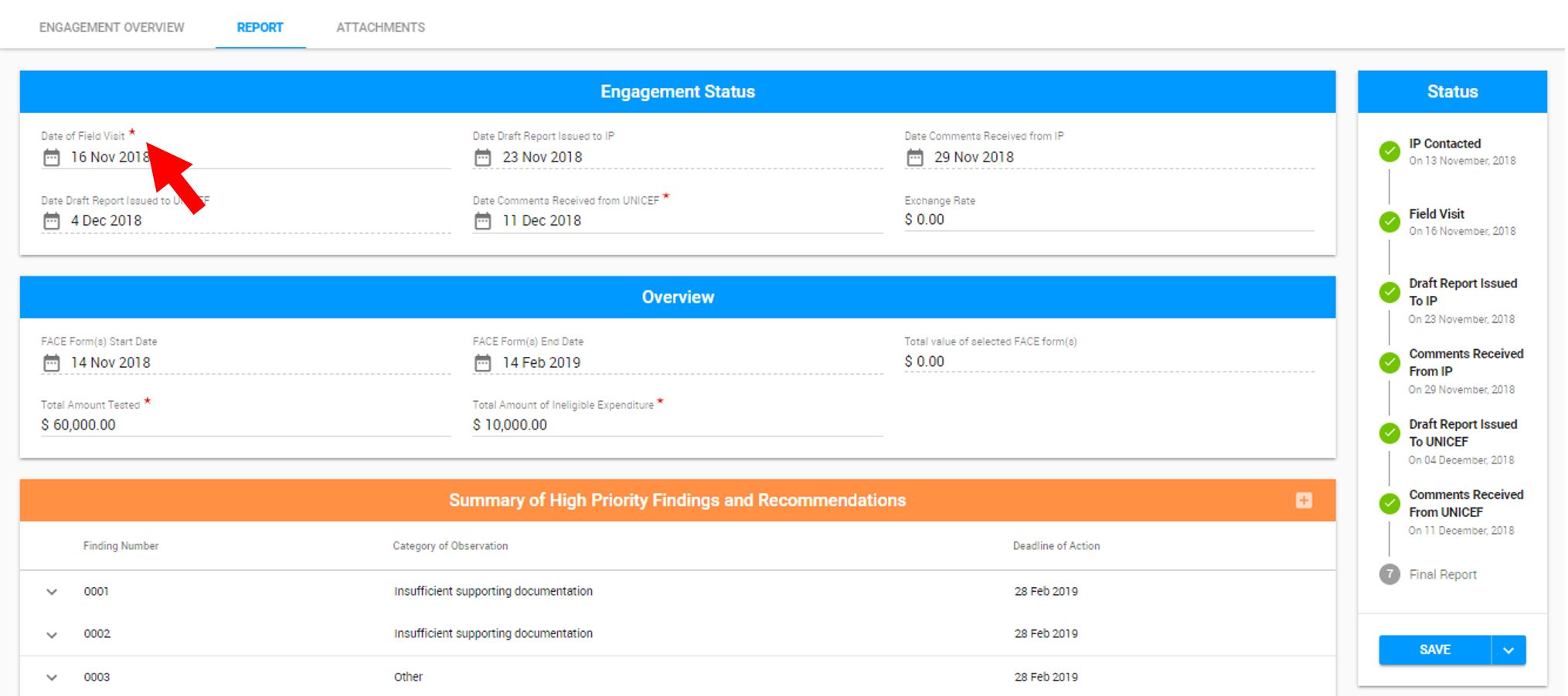

4) Once the field visit is over, the Auditor is required to issue a draft report of their assessment to the partner for review. Once issued, you will enter the Date Draft Report is Issued to IP in eTools. Once you enter the Date Draft Report issued to IP into the report, the status will update to coincide with this date

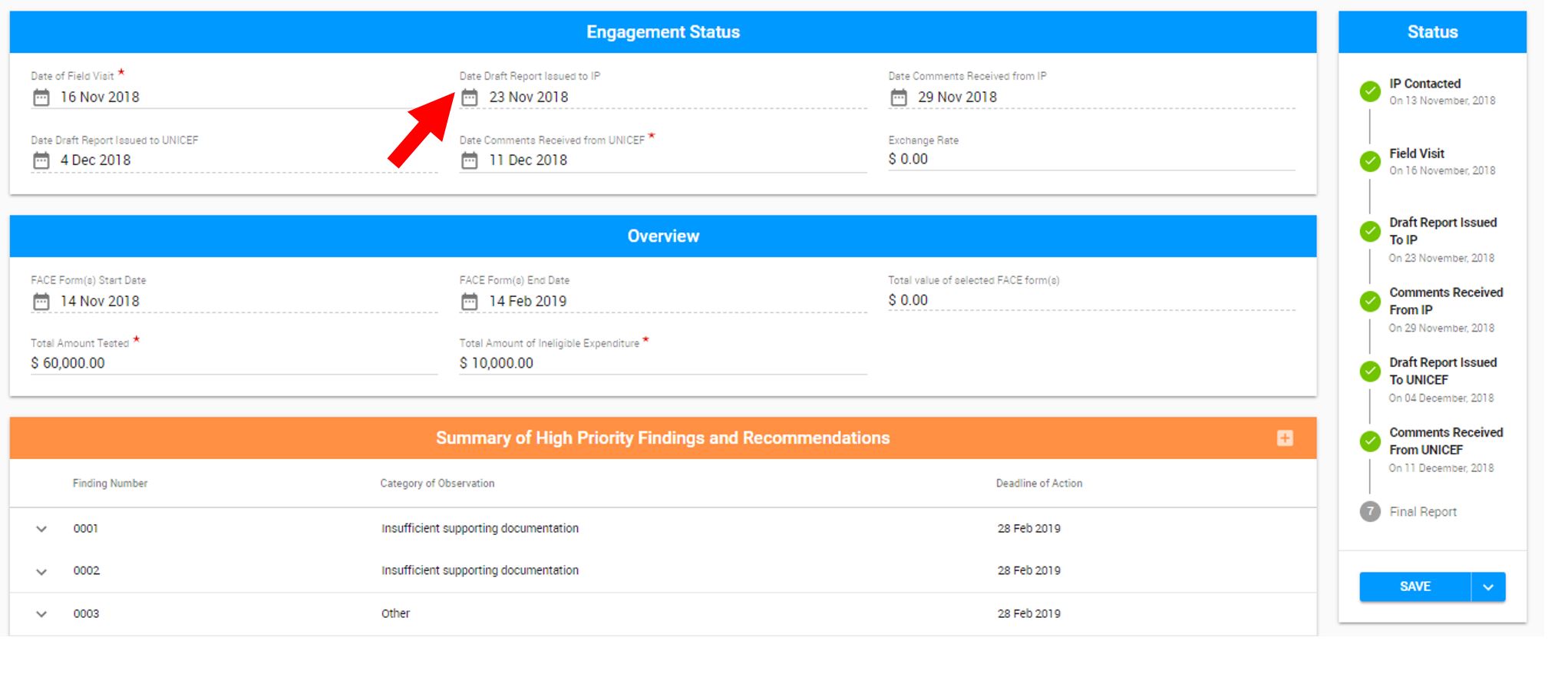
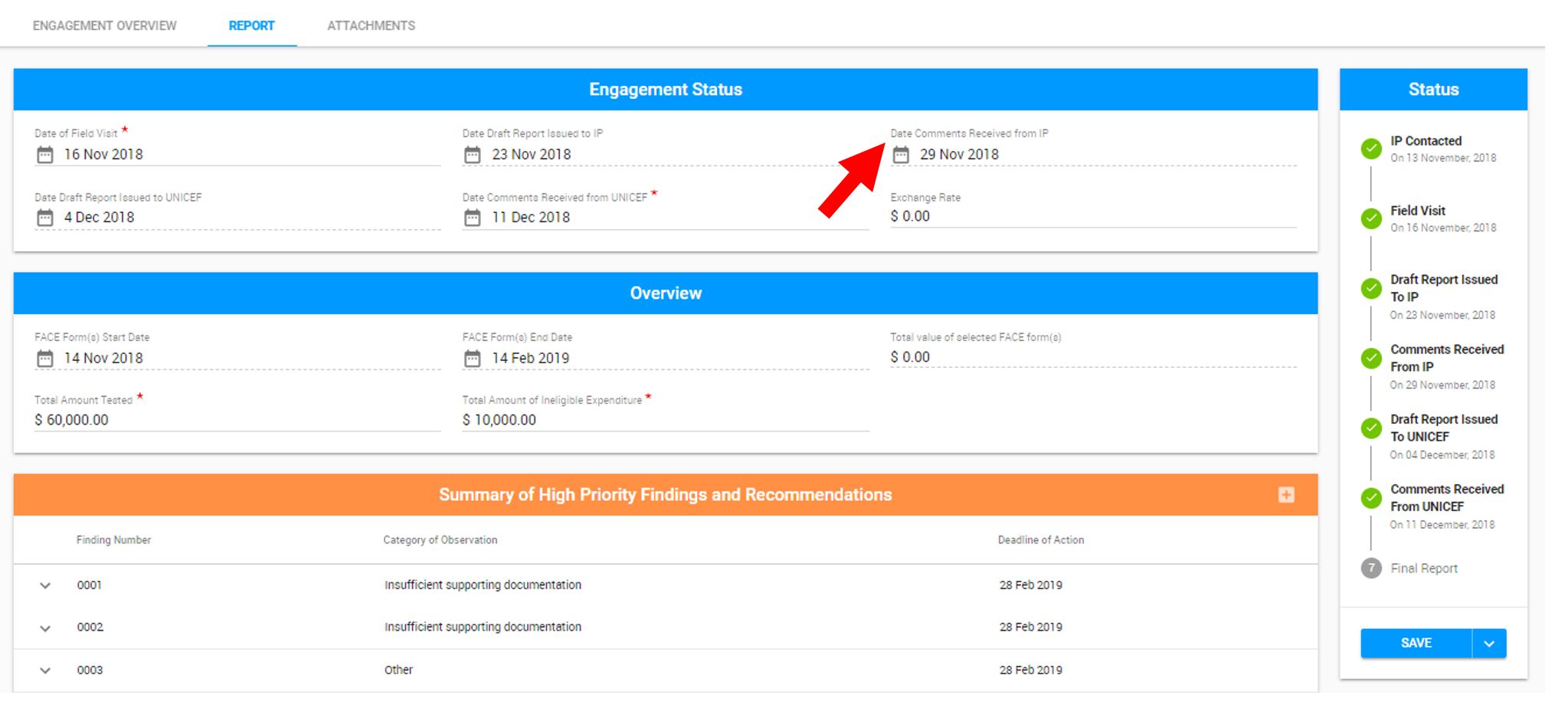
5) After the IP sends you comments, you will enter Date Comments Received from IP. Once you enter the Date Comments Received from IP into the report, the status will update to coincide with this date (see below)

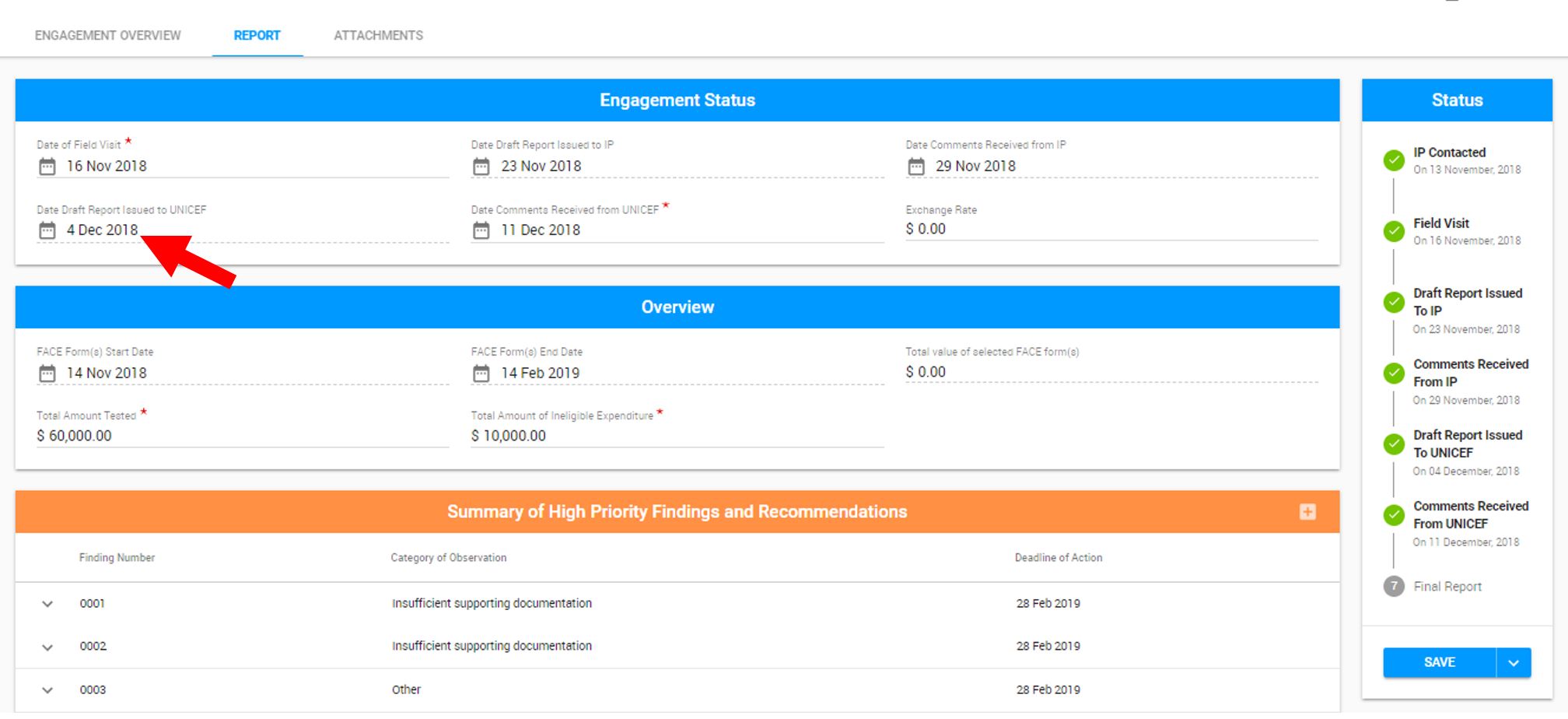
6) After you issue draft report to UNICEF to review and make comments, you enter the Date Draft Report is Issued to UNICEF. Once you enter the Date Draft Report is Issued to UNICEF into the report, the status will update to coincide with this date (see below)

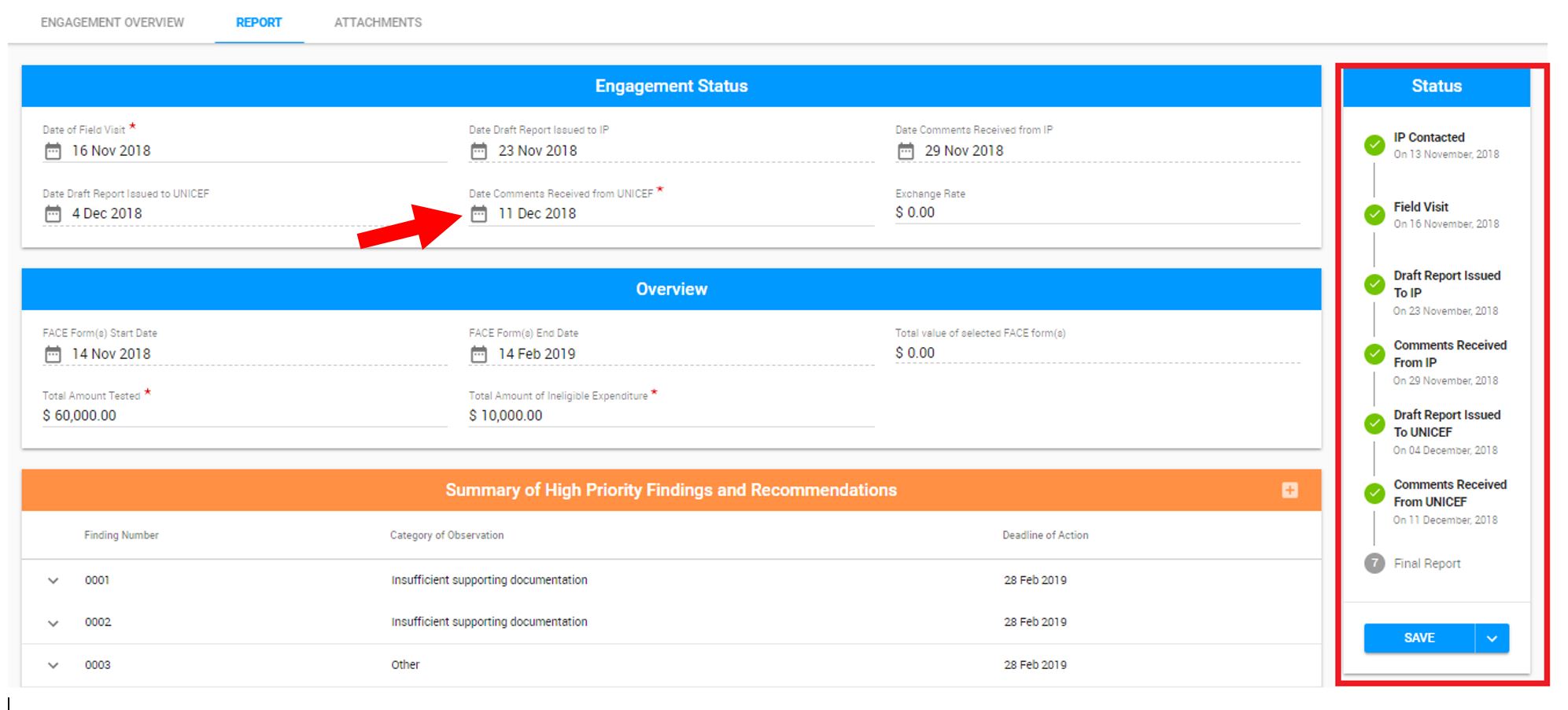
7) After you receive and review the comments for UNICEF, you are required to enter the date you received those comments. Once you enter the Date Comments Received from UNICEF into the report, the status will update to coincide with this date (see below)

8) In the report tab, scroll down to Overview and enter Total Amount Tested and Total Amount of Ineligible Expenditure
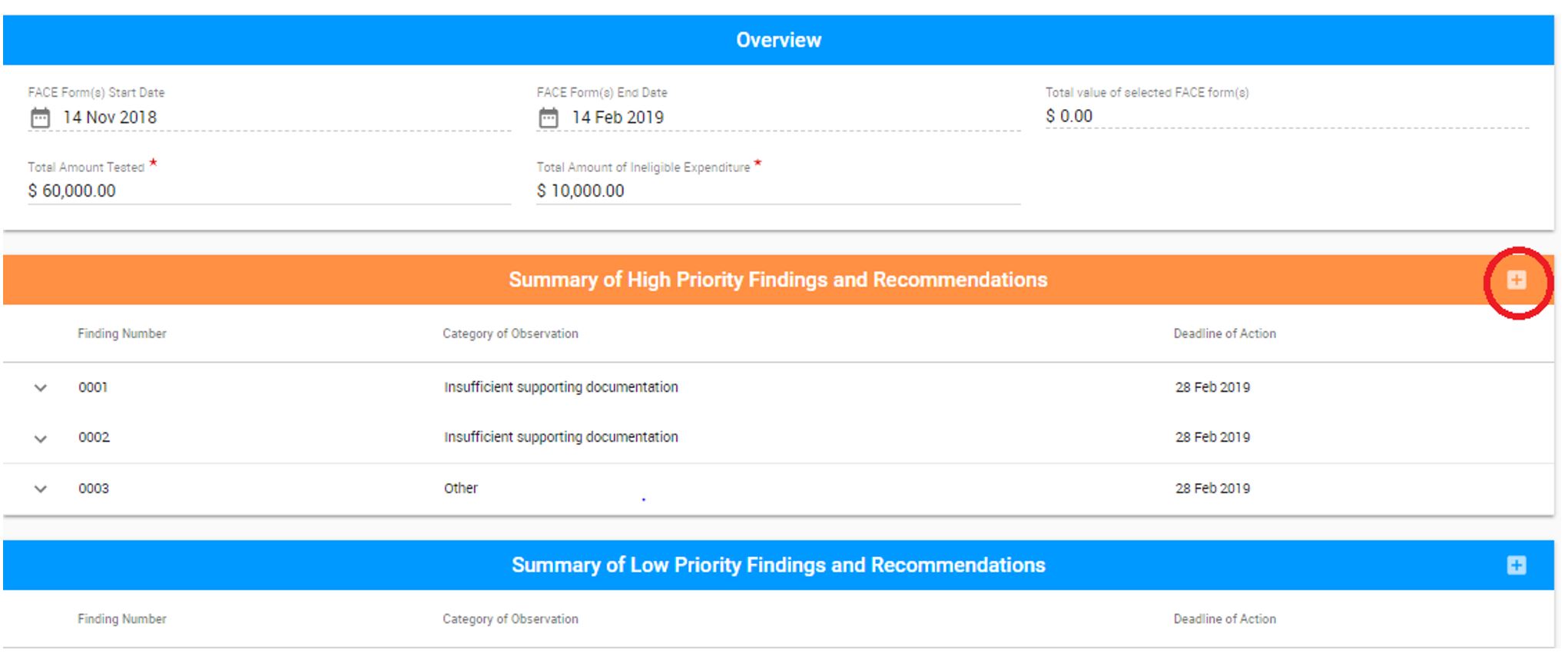
9) In the Summary of High Priority Findings and Recommendations section, click on + sign to enter information
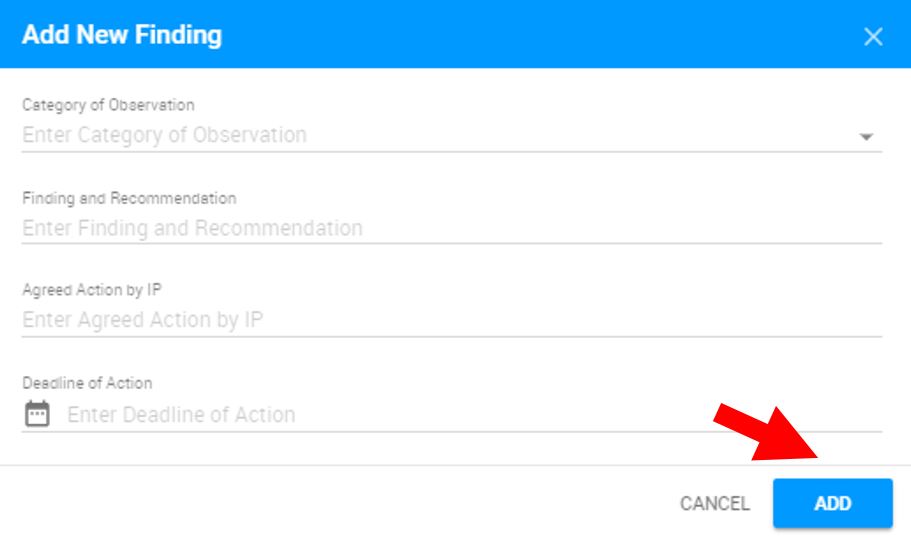
10) Add New Finding and click Add
NOTE: If you wish to edit or delete the finding, hover over the finding you and icons to edit or delete your finding will appear. Click on appropriate icon
11) In the Summary of Low Priority Findings and Recommendations section, click on + sign to enter information

12) Add New Finding and click Add
NOTE: If you wish to edit or delete the finding, hover over the finding you and icons to edit or delete your finding will appear. Click on appropriate icon
13) Go to Internal Controls section and document any changes identified

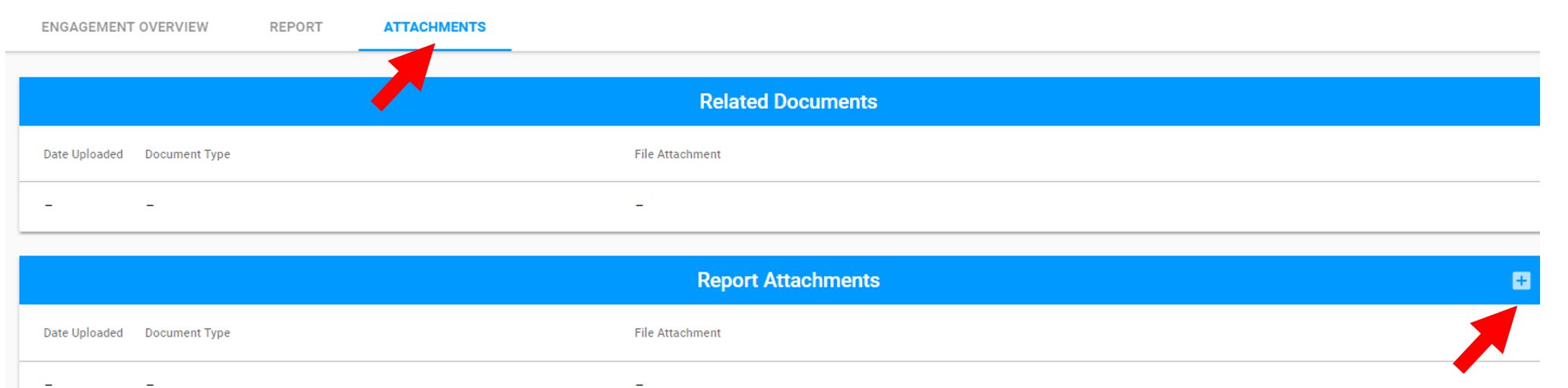
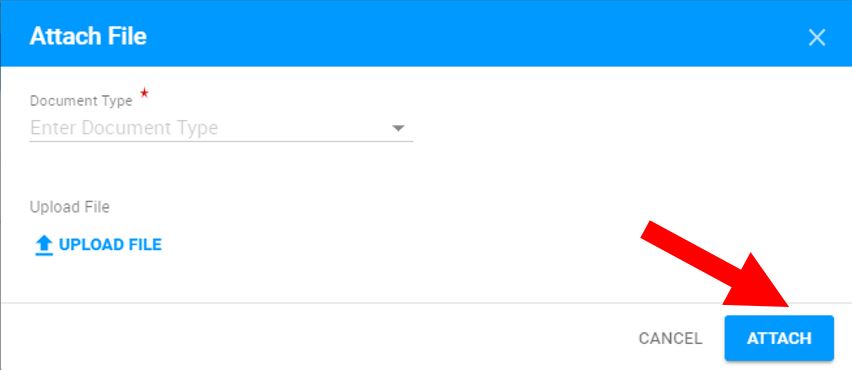
14) Go to Attachments tab to attach your report. Click on + sign to attach a report
15) Select Document Type from the drop-down menu and then upload file. Once the file is uploaded, click on Attach
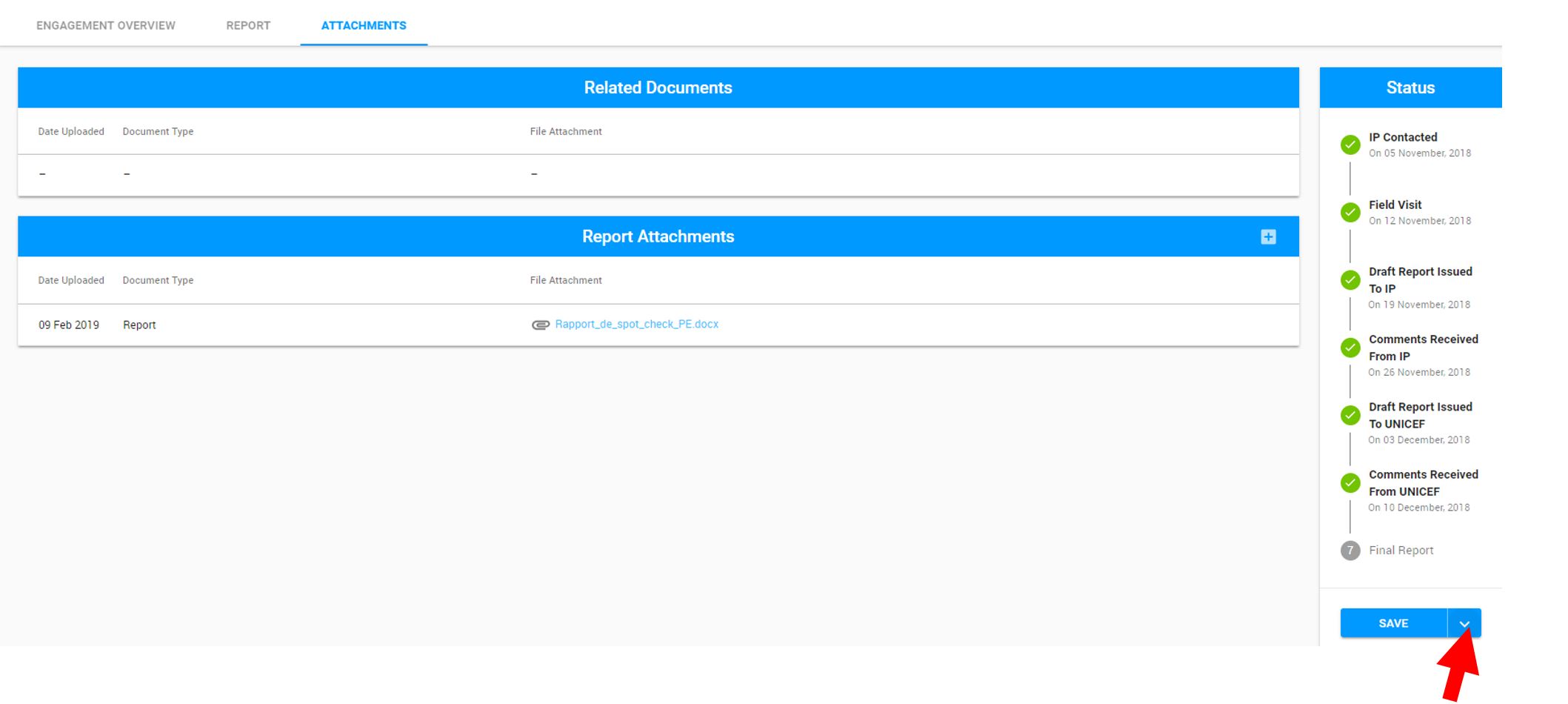
16) After you uploaded your report, go to status bar and click on the arrow next to Save button
17) Click on Submit
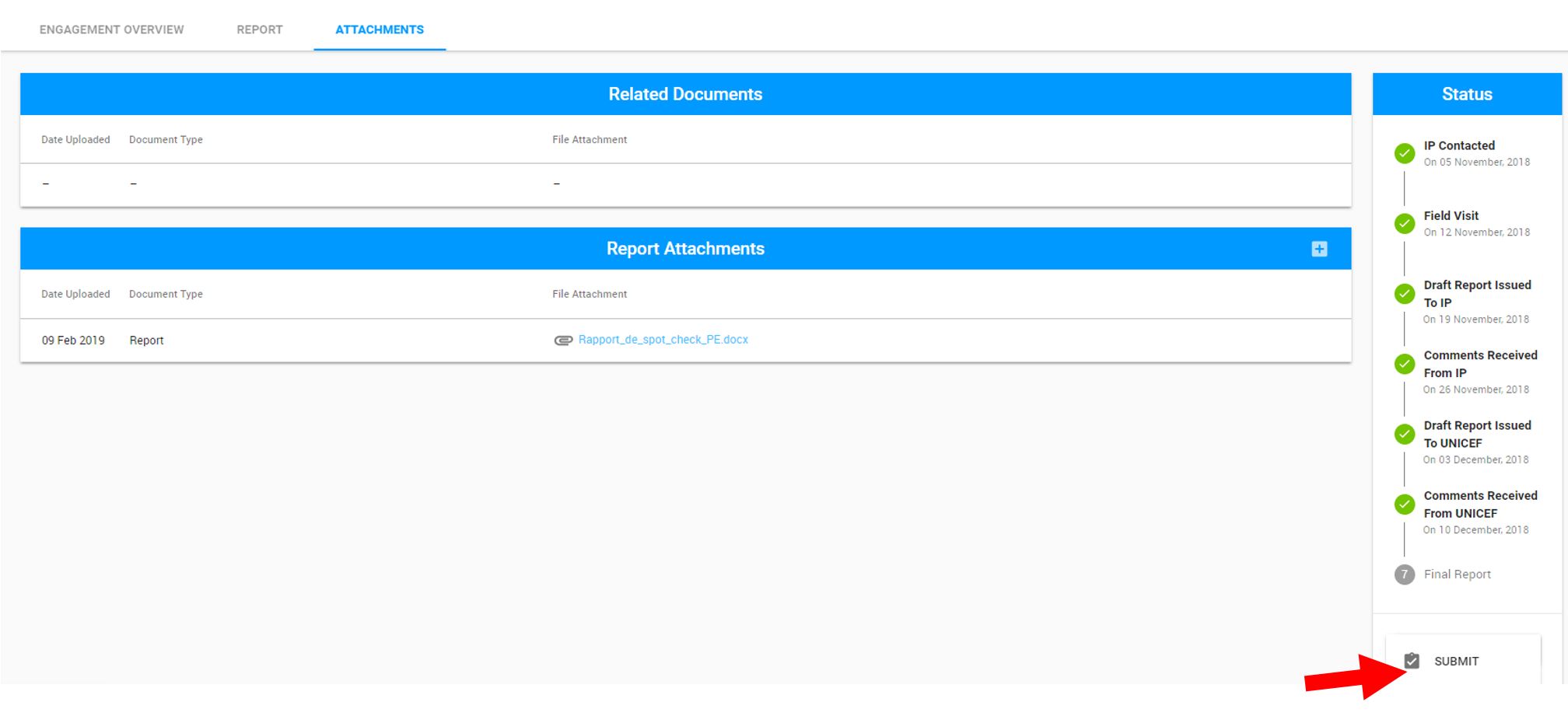
18) Your engagement will be submitted and your status bar will show that your report has been finalized