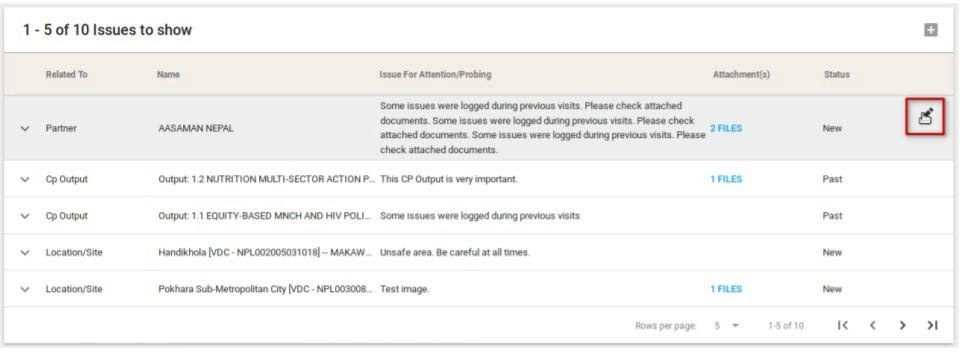
Purpose: Issue Tracker
Who: FM and PME Users
When: When a user wants to log known issues related to a Partner, CP Output, or Site/Location. These issues will then appear in the Data Collection plan during field monitoring activities involving any of the above categories.
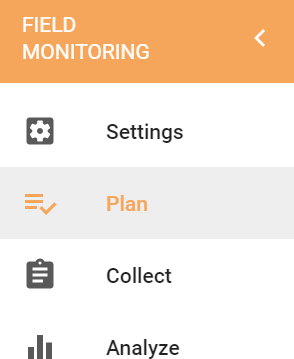
- Access the Field Monitoring module in eTools and go to the Plan section in the left navigation column
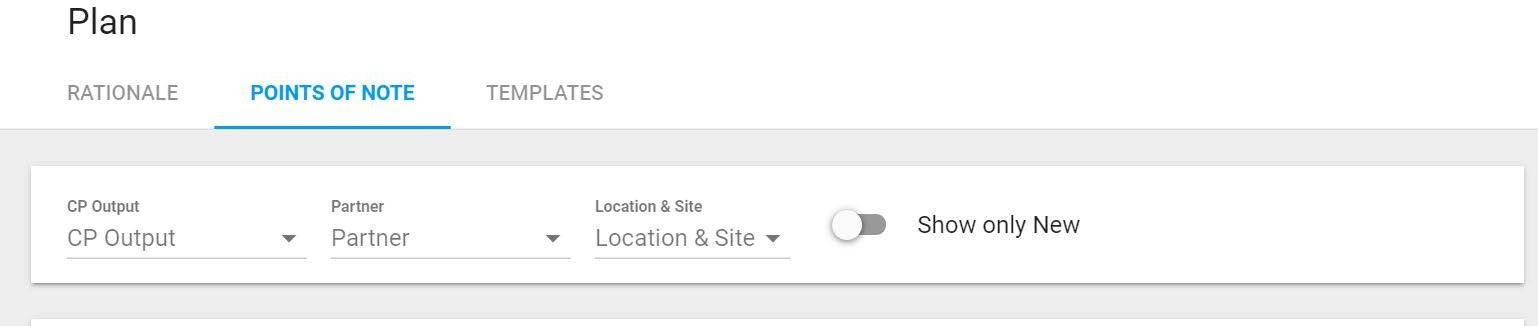
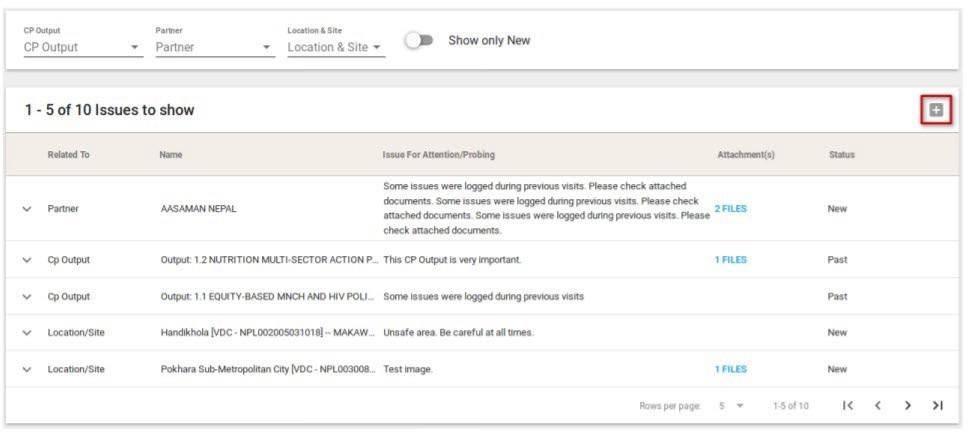
Ensure you are in the Points of Note tab:
- Issue trackers can be filtered by CP Output, Partner, Location & Site and by New issues
- For each issue shown, the default is a compact list. Clicking the down arrow shows who has raised the issue, who last modified it, and when. If an issue were closed, the user would see who closed it and when.
- Relevant files can be downloaded from the attachments column
- The status column will show if the issue is a New or Past issue
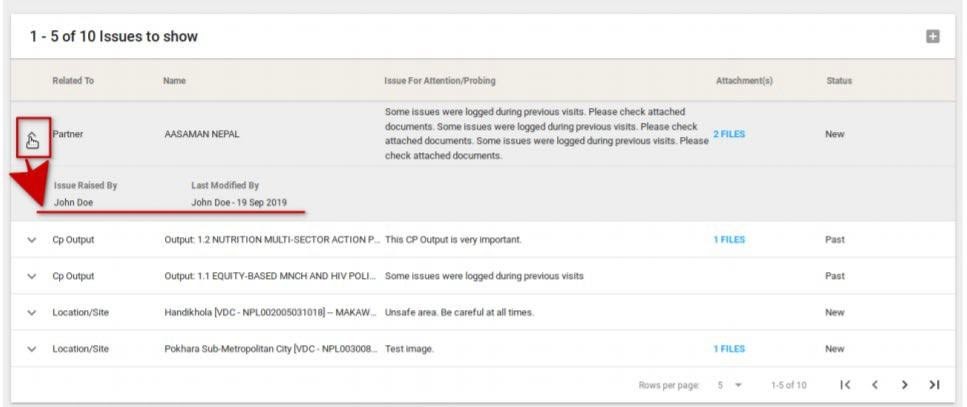
- To add a new issue, click the "+" button:
- The Log Issue window will appear on the screen. The window contains the following characteristics to be completed by the user:
- It allows creating issues related to a particular CP Output, Partner, or Location/Site. According to the chosen option, users can select Partner name from the list of all Partners, CP Output from list of all CP Outputs, or Site from a list of all Sites using a drop-down list
- The Status of the newly created Issue can be set as New or Past
- The Issue field allows adding a short description of the issue
- If required, users can attach documents to the new issues. To do this, click the Upload File button and choose the file you want to attach. Users can add as many files as needed
To add a new issue, click the Add button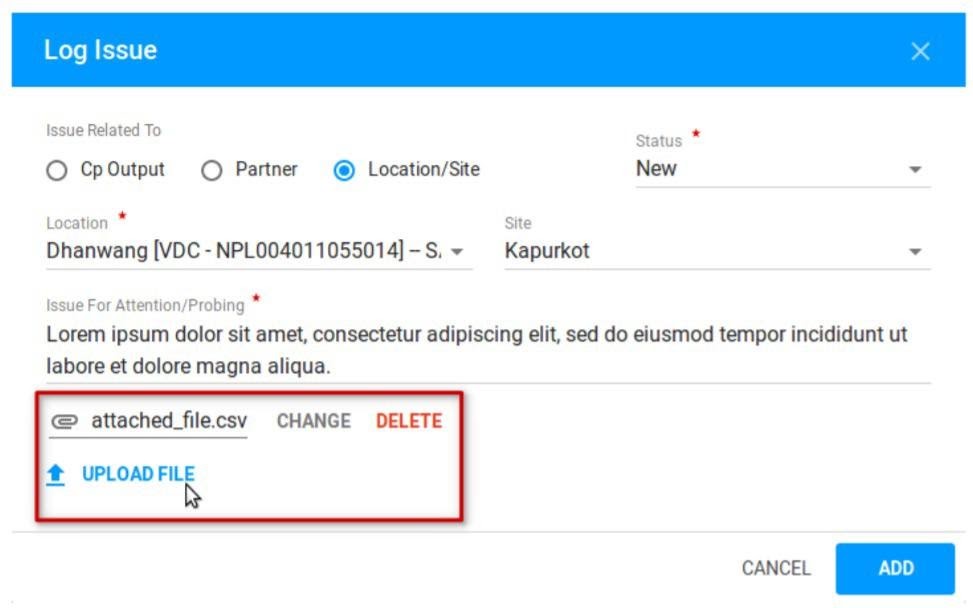
- To edit an issue- click on the pencil icon which will open the window highlighted in the previous step; click Save when you have completed your edits