Purpose: Orient users to access the helpdesk on eTools, which is now transitioned to the Global Shared Service Center’s (GSSC) Service Gateway
Who: UNICEF Staff
When: User requests eTools support from the help desk/Service Gateway. The requests supported by the helpdesk/Service Gateway include:
- User access and authorization
- User how-to
- Identification of bugs/errors
- Queries on policies and procedures supported by eTools on implementing partnerships
Please note the following:
- External/non-UNICEF users will not be able to access the Service Gateway. External users should liaise with their UNICEF focal point to r aise any queries via the Service Gateway on their behalf.
- The Help/Support process on eTools’ UN Partner Portal will continue to use the standard user support process
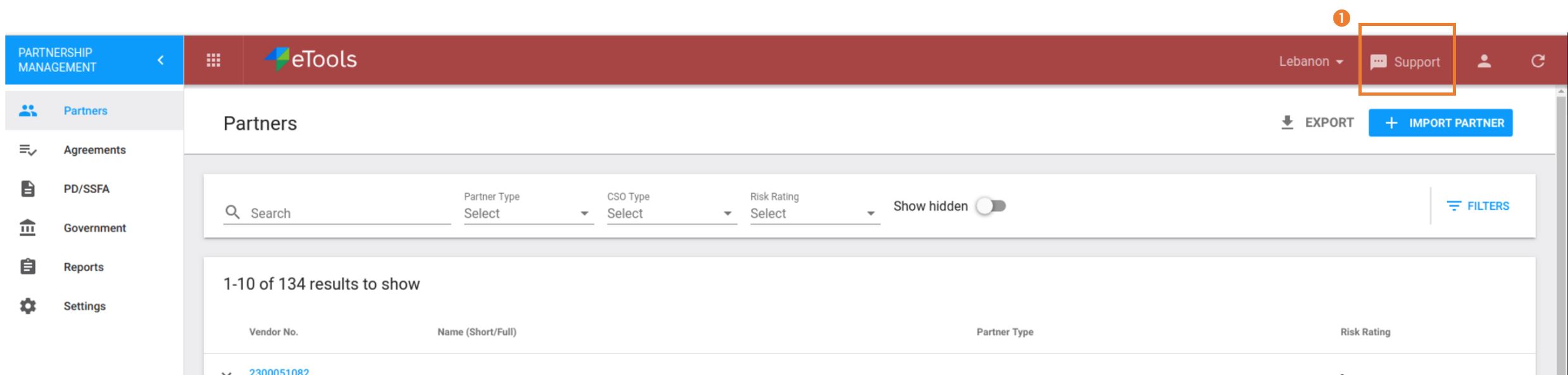
Step 1: Login to eTools and click on the "Support" icon (1) in the top banner. This will redirect you to the Report on an IT Problem function in Service Gateway.
If you are having issues accessing the system, please directly log your request via the Service Gateway’s to Report on an IT Problem.
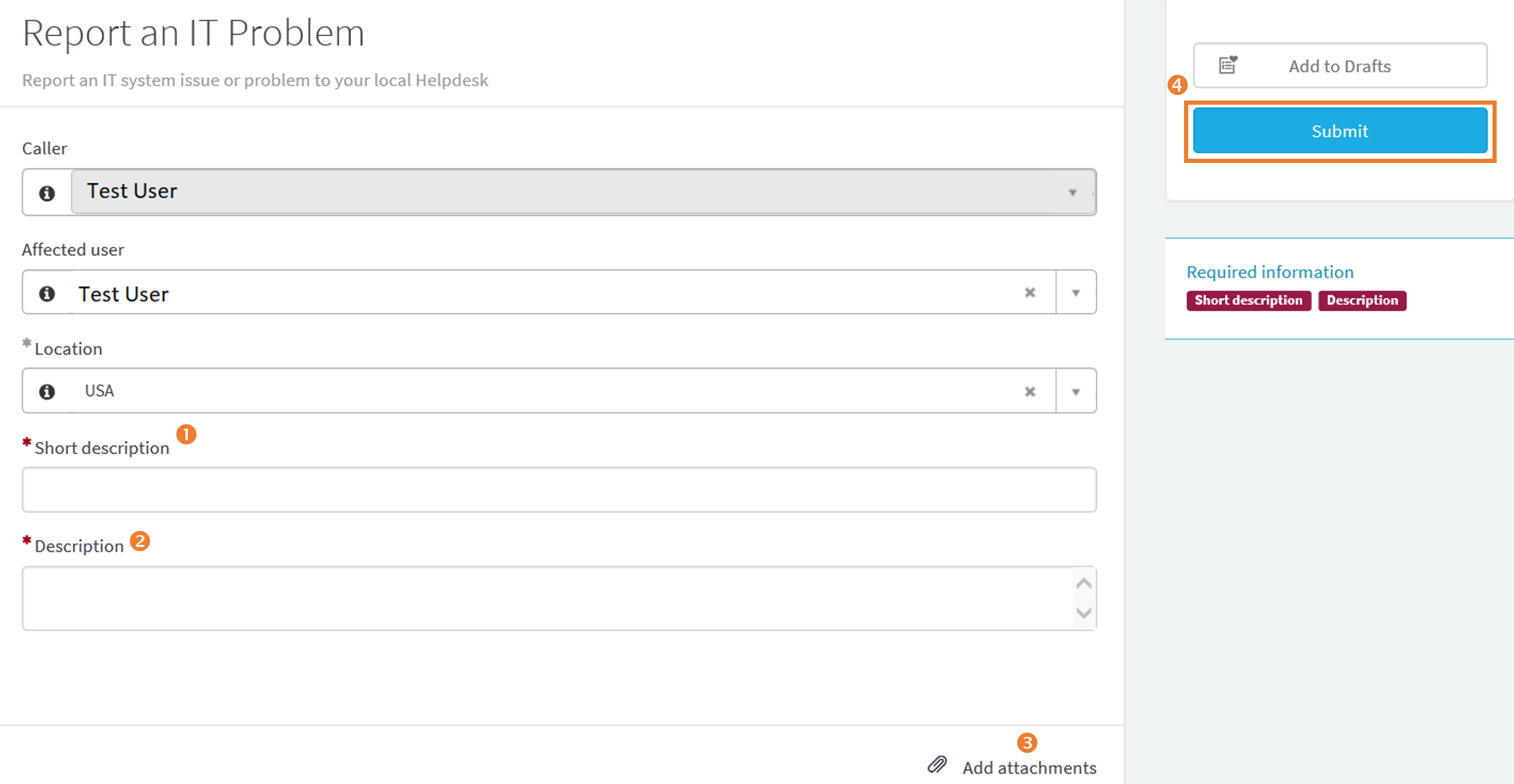
Step 2: The Report an IT Problem feature in service gateway will automatically populate your user information based on your UNICEF ID.
- In the “Short Description” (1) text box, enter a short description of the issue. Please indicate that the request it is eTools related and highlight the specific module (e.g. PMP, FAM, TPM etc.) that you are requesting support for
- In the “Description” (2) text box, enter a more detailed description of the support requested.
- In the “Attachments” (3) field we recommend including screenshots (as applicable) of any issues your are encountering to ensure that the help desk can accurately diagnose and provide a solution to the support request
- Click on “Submit” (4) to submit your support request
(Reference Video for UNICEF Staff on How to Report an IT Problem on Service Gateway)
Please note that the help desk/Service Gateway will respond to your request within 24-48 hrs.